
Homebase
The Time Clock app is added to your Register iPad to make it easy for your team to clock in and out.
Time Clock is powered by Homebase, a Slice Partner that helps you manage schedules, hours, and team communication. Your team can clock in using the Register iPad or their own phones — whichever works best for your shop.
You’ll use the Homebase website or mobile app separately to set up schedules, manage employees, and run payroll.
If you’d like to add Time Clock to your Register iPad, please reach out to Slice Support for help getting started
Getting Started
To use the Time Clock app, you must first have a Homebase account. If your shop doesn’t have one yet, go to www.joinhomebase.com to create an account before continuing.
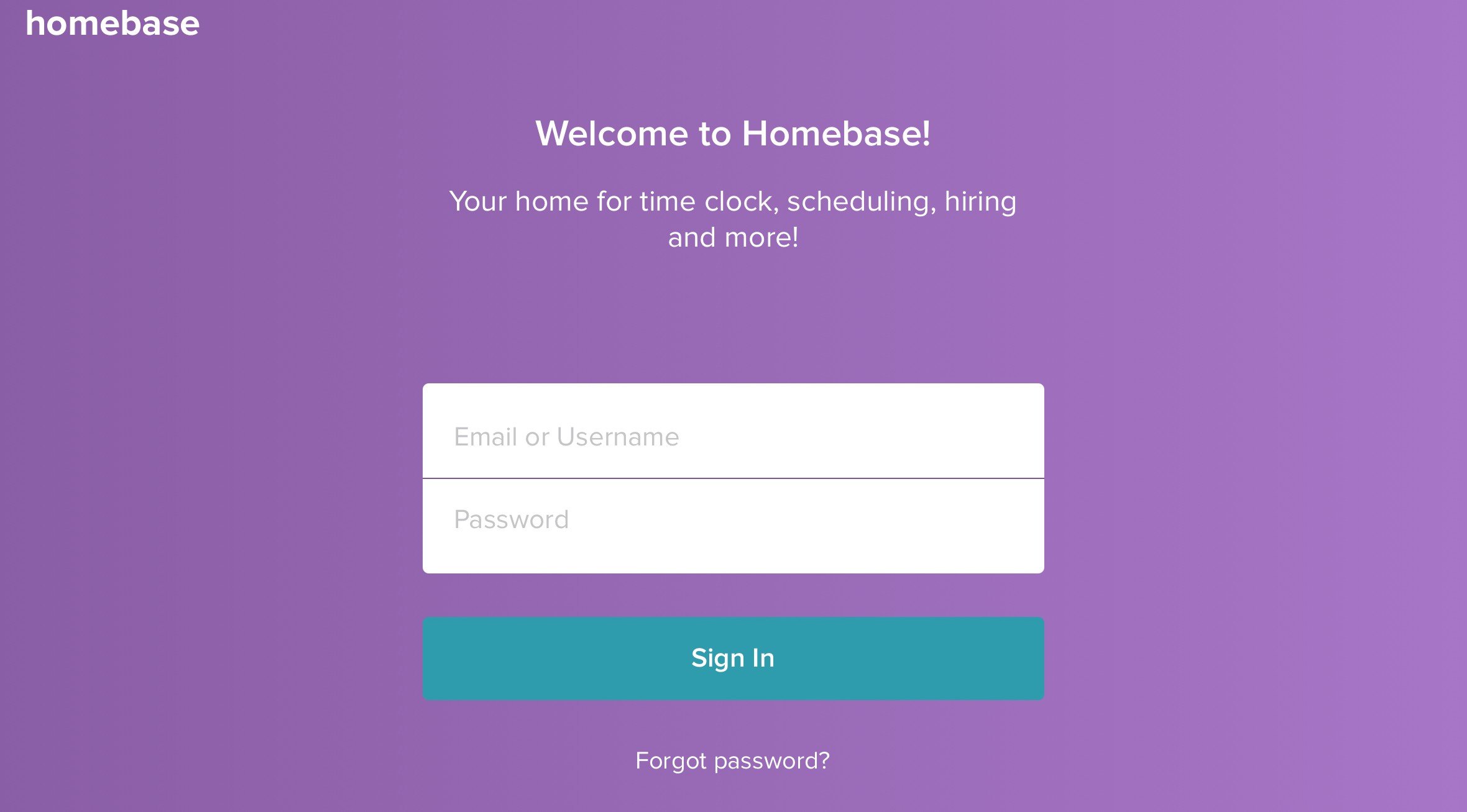
Once your account is set up:
- Open the Time Clock app on your iPad.
- On the Welcome to Homebase screen, enter your email or username.
- Enter your password.
- Tap the Sign In button to continue.
After logging in, your team will be able to clock in and out using their PINs.
Clocking In
Tap the iPad’s home button to exit the Slice Register app.
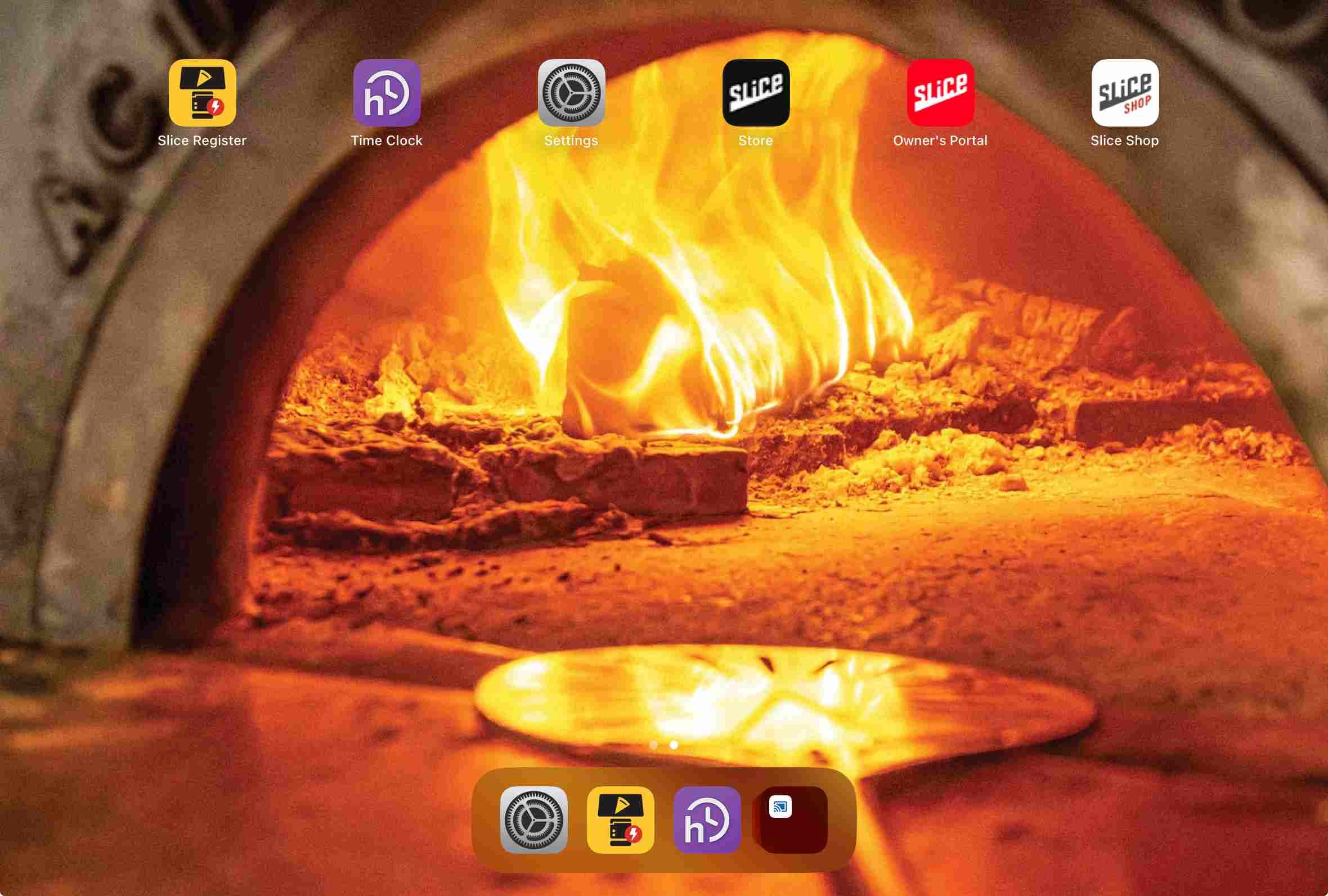
Tap the Time Clock app on the home screen.
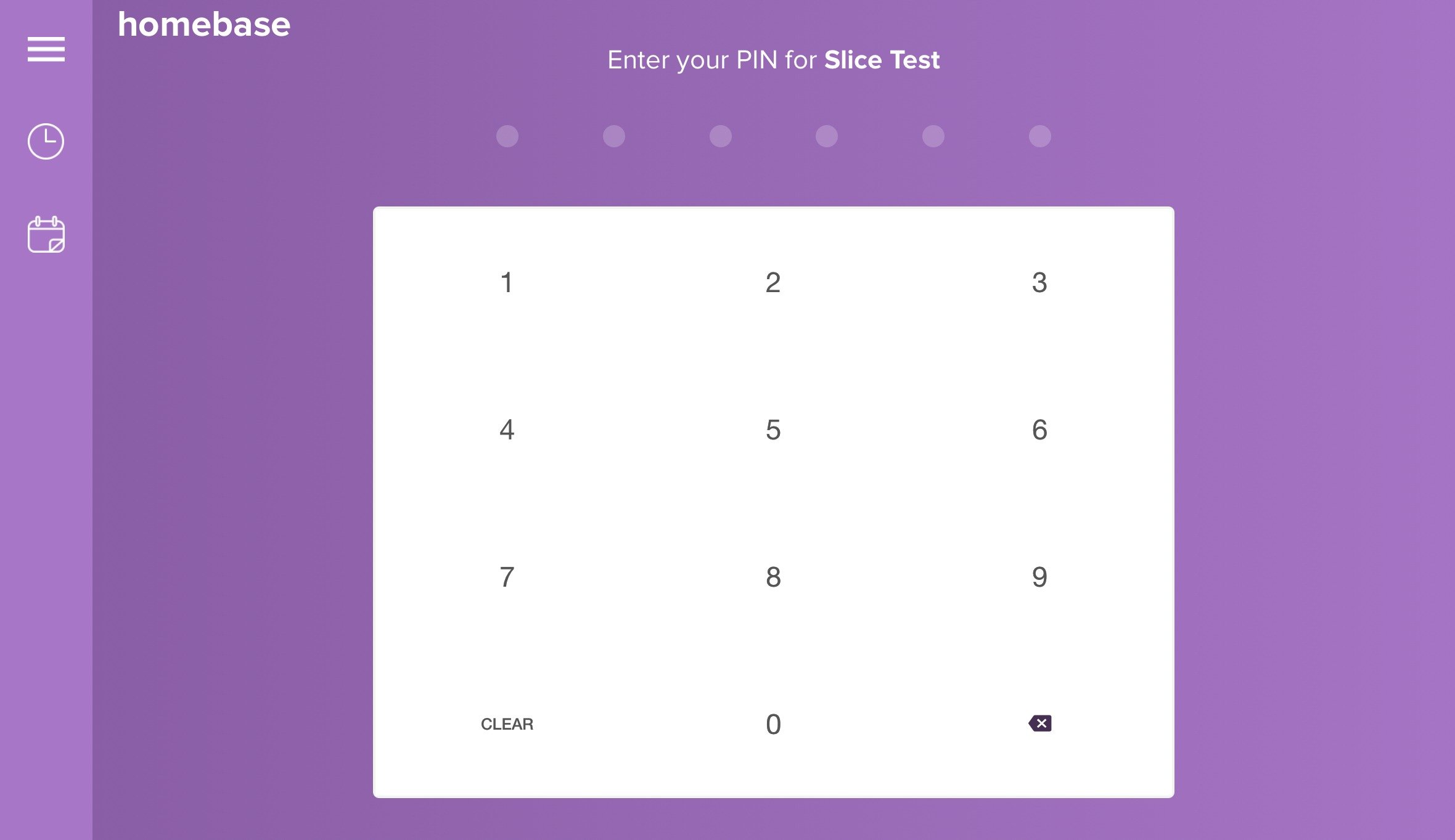
Enter your PIN on the keypad.
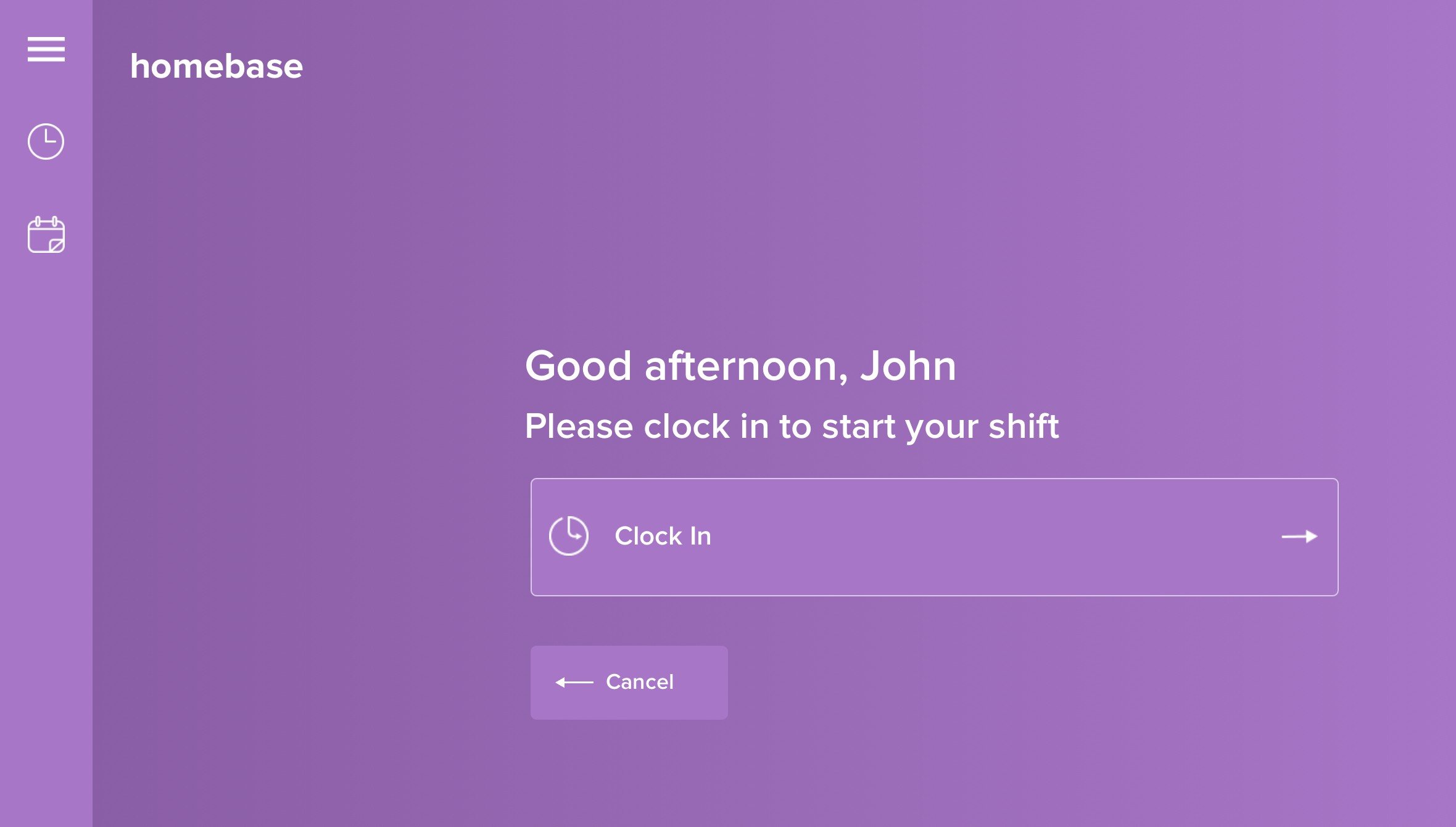
You’ll see your name and a prompt to clock in. Tap Clock In to begin your shift.
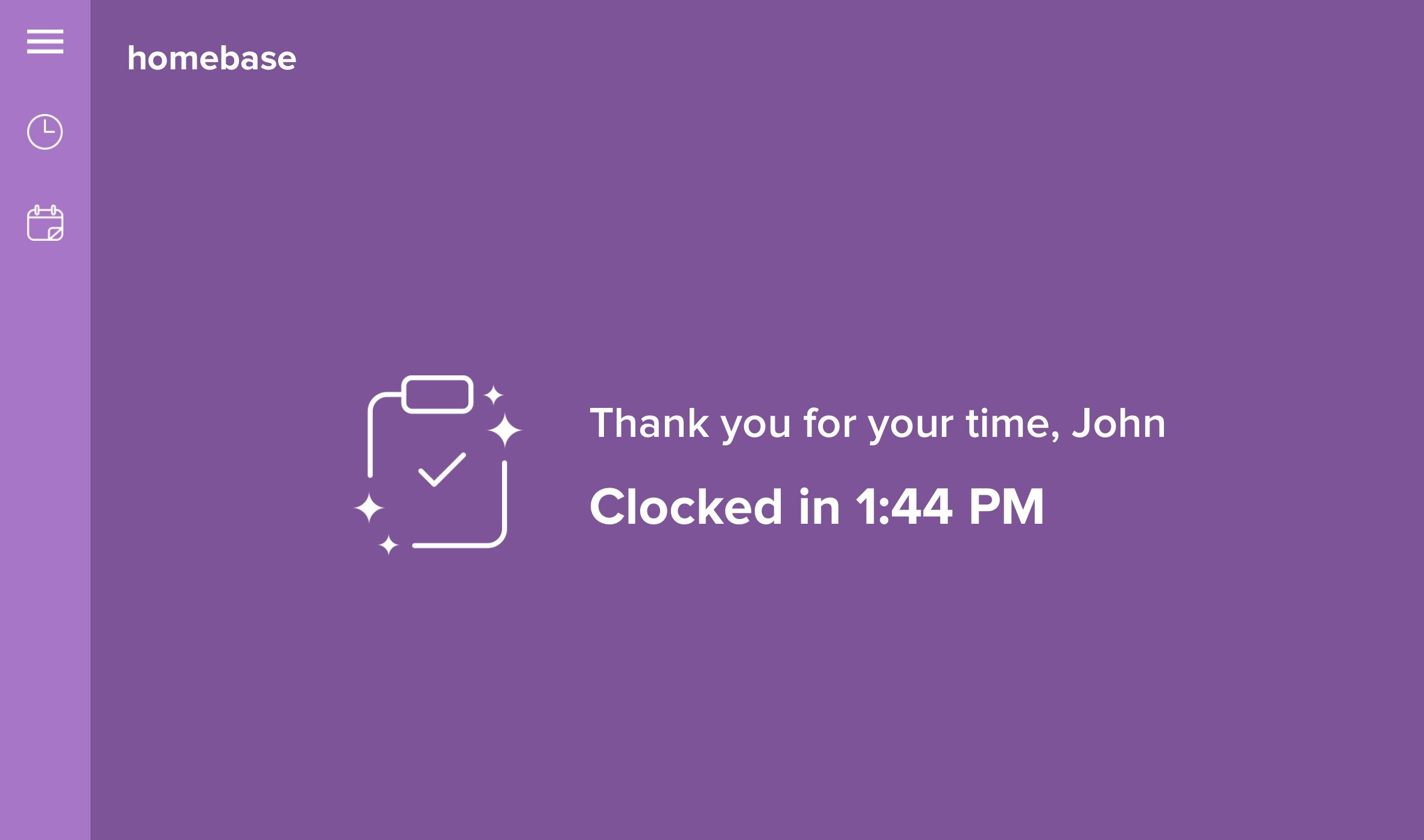
You’ll get a confirmation message once you’ve successfully clocked in.
Tap the home button again to return to the iPad’s main screen, then reopen the Register app to begin your shift.
Clocking Out
Tap the iPad’s home button to exit the Slice Register app.
Open the Time Clock app from the iPad home screen.
Enter your PIN to access your profile.
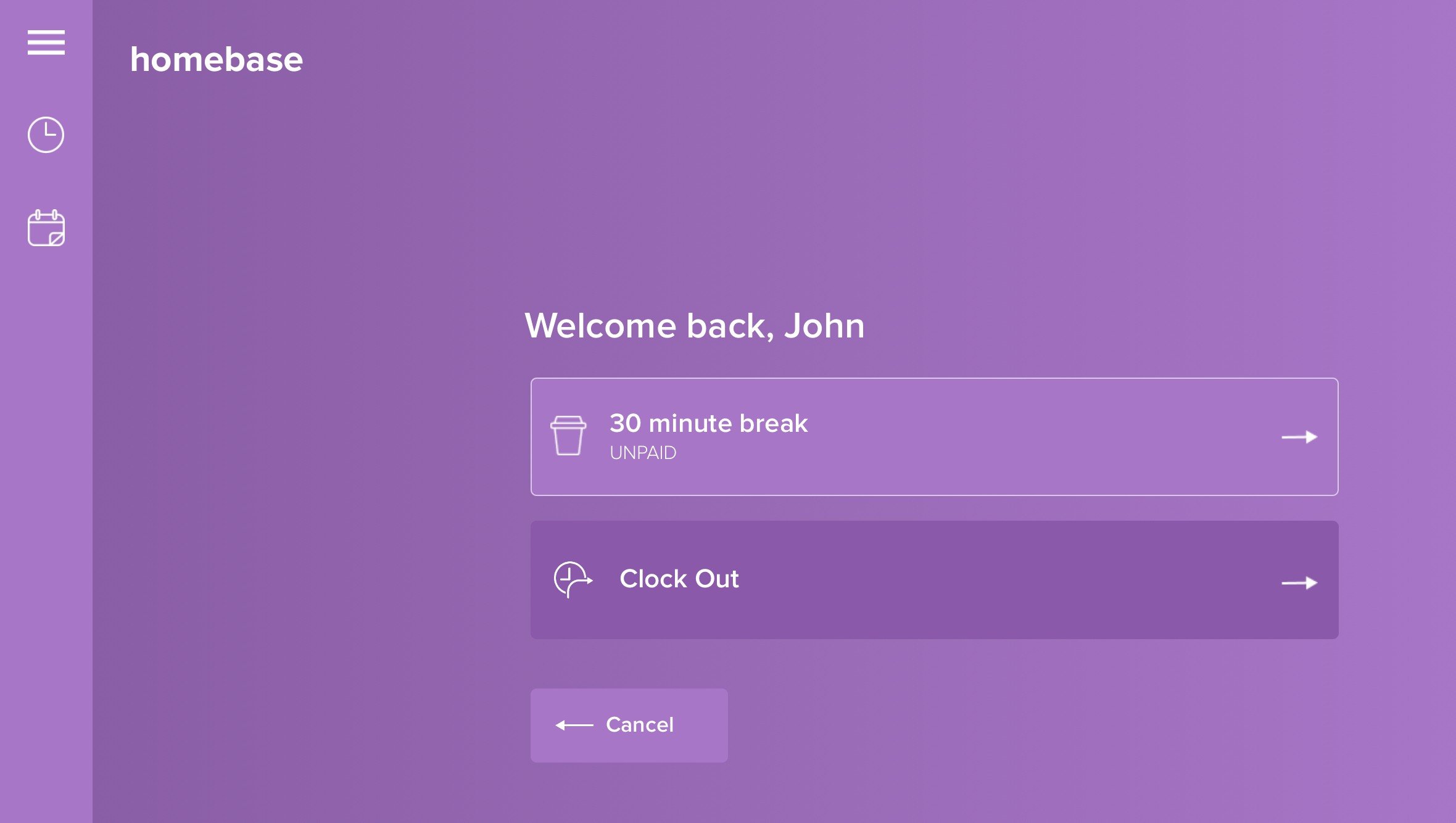
You’ll see your name and a screen with options. Tap Clock Out.
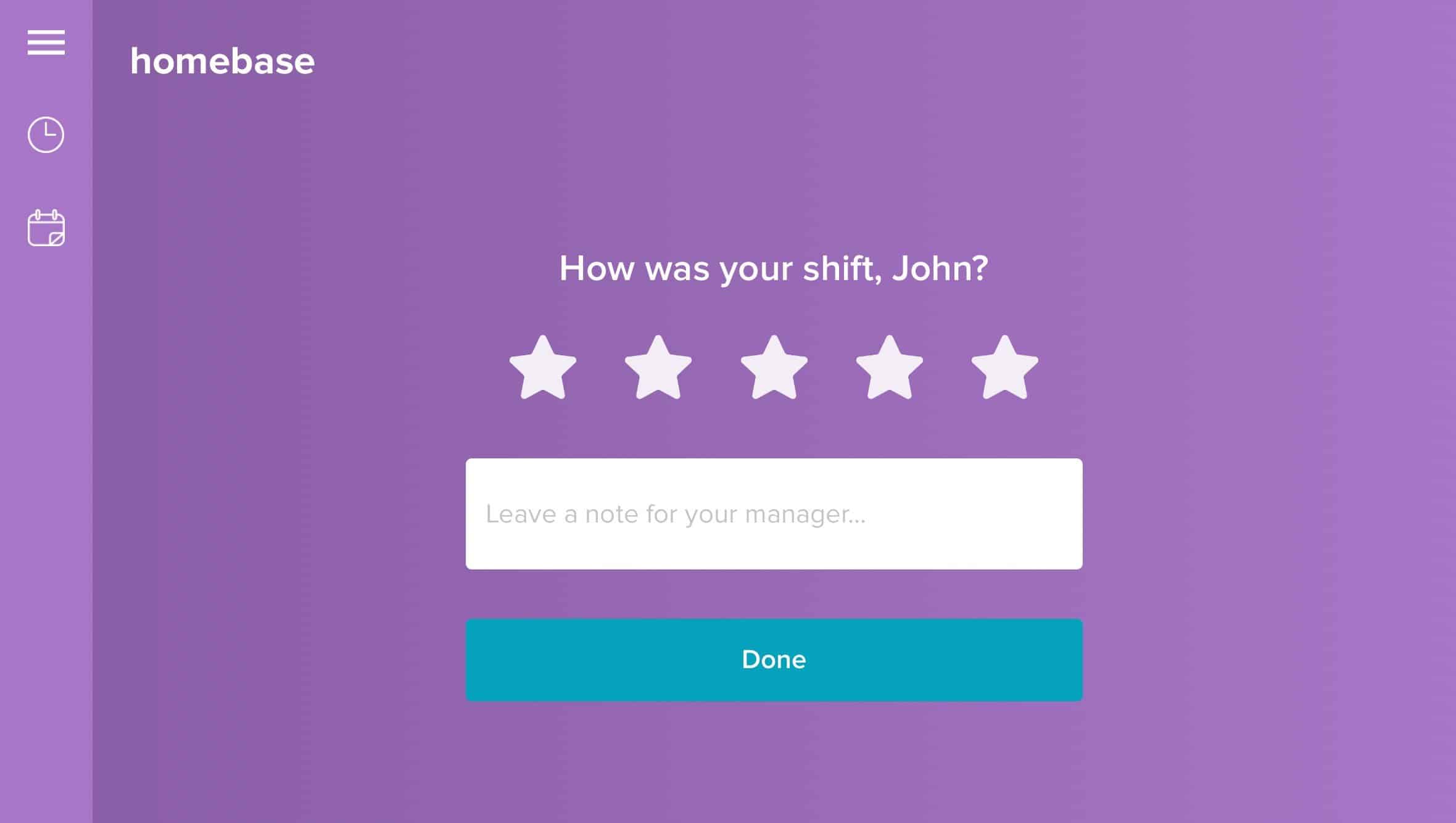
Rate your shift and leave a note for your manager if you’d like — this step is optional.
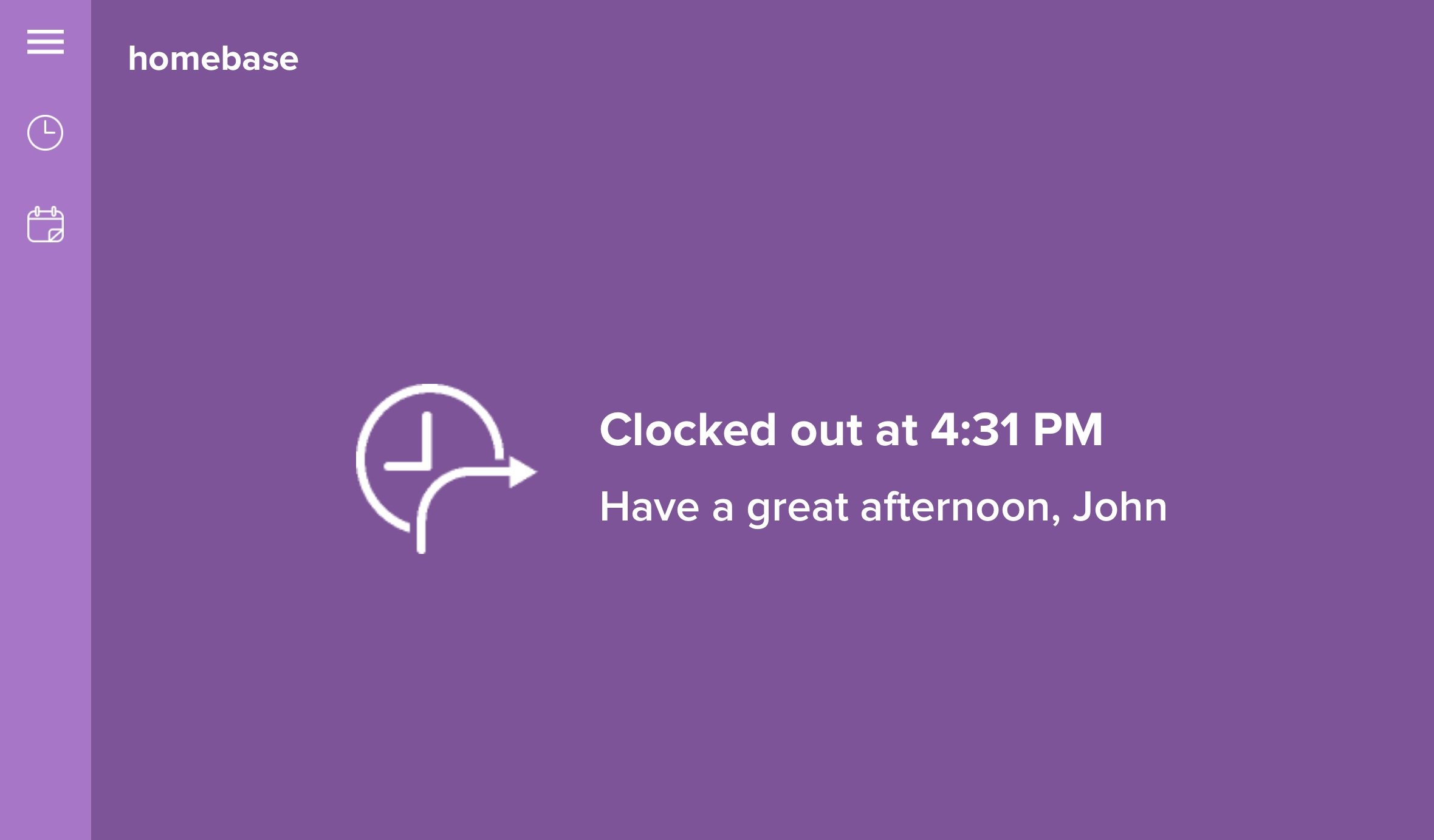
After submitting, you’ll see a confirmation screen showing the time you clocked out.
Tap the home button again to return to the main screen, then reopen the Register app if needed.