
Website Tools

The Website Tools dropdown provides options to enhance your shop’s Slice website with customized features for online ordering and customer engagement, as well as buttons and links for websites you manage.
- Smart Buttons: Generate a Smart Button link for your shops website and customize its appearance by choosing color schemes and formats.
- Smart Popups: Produce a pop-up widget that appears at the center of your website, designed for messages, updates, ordering, and more.
- Custom Website: Personalize the look of your Slice Custom Website by selecting colors and fonts.
- Classic Button: Build an ordering button for your website or generate an ordering link URL if a button isn’t needed.
Smart Buttons

The Smart Buttons page allows you to configure and preview a Slice Online Ordering Smart Button for your website.
Button Configuration: Use dropdown menus to customize the buttons:
- Color
- Theme (font)
- Format (button, sticker, or banner)
- Position (e.g., bottom left or right)
- Mode (dark or light)

Preview and Save: Enter your shop’s website URL in the preview field to see how the button will look on your webpage. Once satisfied, click Save and copy the code shown under the Embed Button section.

Embed Button:
- Copy and paste the generated code into your website’s HTML <head> tag to activate the button.
If you have any problems, please don’t hesitate to contact your account manager for help. Please check out our Website Integrations Page for additional support and technical documentation.
Smart Popups

The Smart Popups page allows you to customize and preview a pop-up for your website to promote online ordering.
- Customization: Choose a Theme (Font) and Color for the pop-up to match your website’s branding.
- Preview and Save: Enter your website’s URL in the provided field to preview how the pop-up will appear on your site. Click Save to apply your settings and generate the code for integration.
Works alongside the Smart Button to enhance your website’s online ordering functionality.
If you have problems, please don’t hesitate to contact your account manager for help. For additional support and technical documentation please check out our Website Integrations Page.
Pizzeria Website
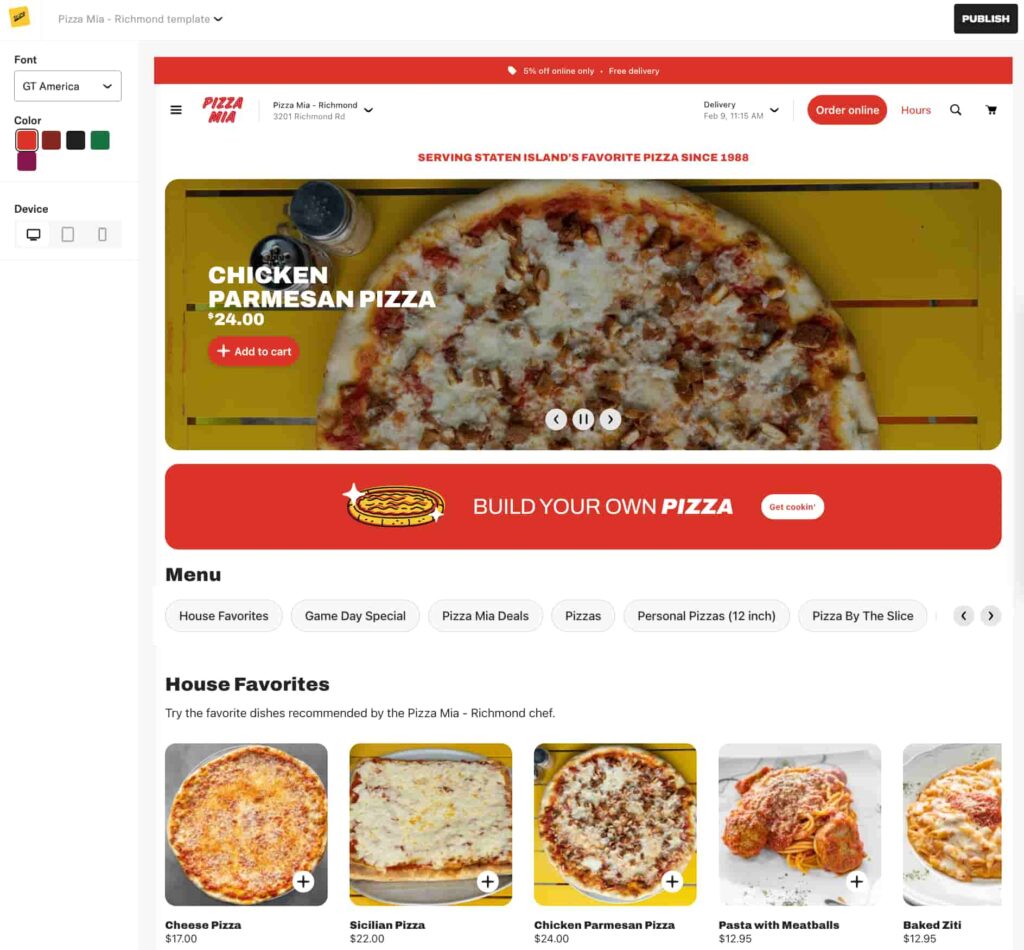
The Pizzeria website page lets you control how your Slice website looks and what customers see when they visit your site.
Your website uses one of several available designs. The design is set by the Slice team. Once your design is applied, you can customize the content and layout options available within that design.
How to edit your Pizzeria website
Use the Pizzeria website editor to make updates to your website. Changes appear in the preview as you make them.
Font and color options
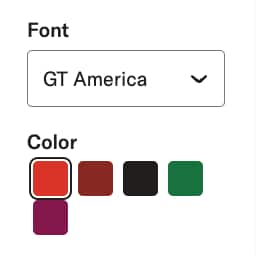
Choose the font and background color that best represent your shop and how you want your website to feel.
As you select different options, the preview updates automatically so you can see the change before publishing.
Edit the tagline

The tagline appears near the top of your website.
To update the tagline:
- Select the tagline text in the editor.
- Enter your updated text.
- Click Update to save.
The preview refreshes to show the new tagline.
Change the featured carousel item
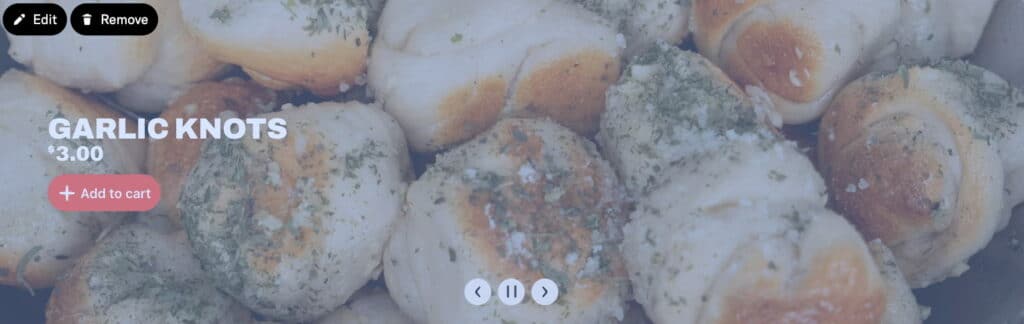
To update the item shown in the main image carousel on your homepage:
- Select the featured content section.
- Choose a menu item from your menu.
- Click Save.
Only items that already exist on your menu can be selected.
Update the Build your own pizza button

The Build your own pizza button links customers to a base pizza on your menu.
To change the linked pizza:
- Select the Build your own pizza button.
- Choose a base pizza from your menu.
- Click Save.
When customers click this button, they are taken directly to that pizza to build their order.
Edit the Our story page
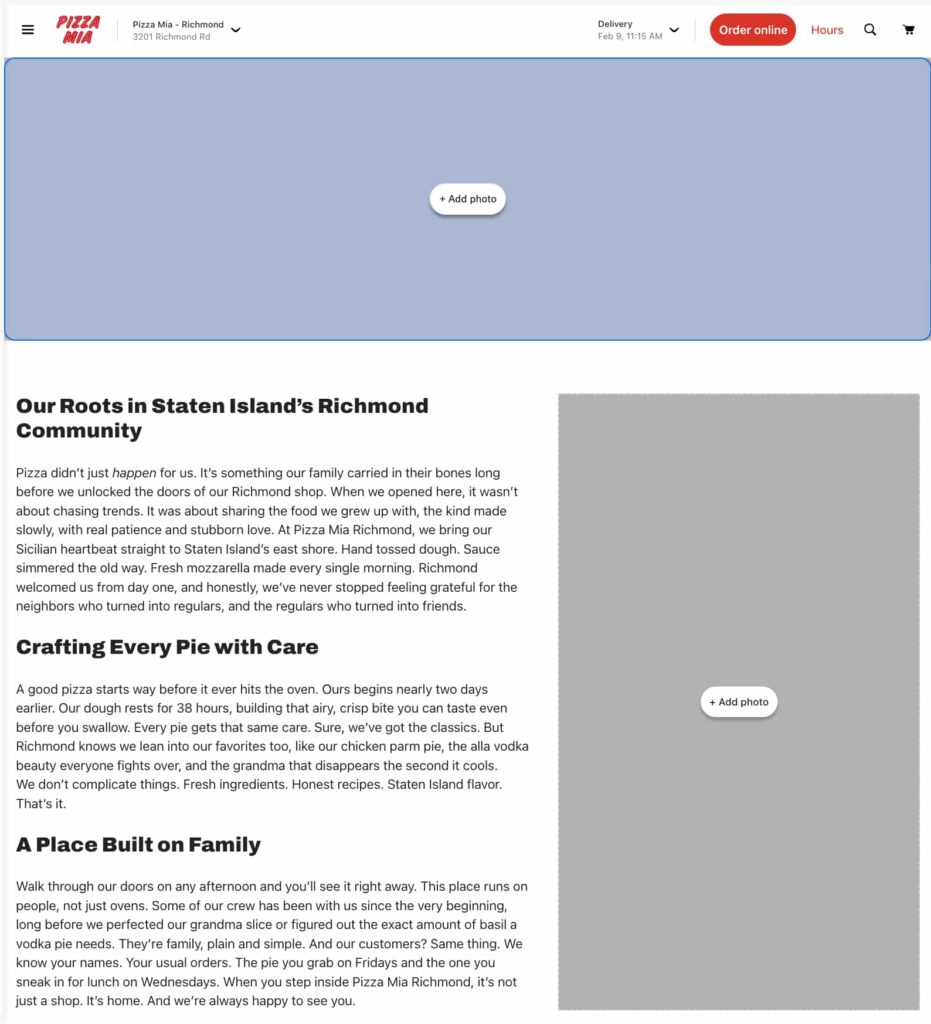
To update the Our story page:
- Open the Our story section in the editor.
- Edit headings and body text as needed.
- Click Update to save your changes.
This content appears on the Our story page of your website.
Live preview and publishing
The preview updates in real time as you make changes, so you can see how your website will look before publishing.
When you are ready, click Publish to make your changes live. Updates take effect immediately.
Things to know
- Website designs are set by Slice. If you want a different design applied to your website, contact Slice Support.
- The Build your own pizza button must link to a pizza that already exists on your menu.
- Pizzeria websites do not support pixel tracking at this time.
Classic Buttons
Create An Order Button
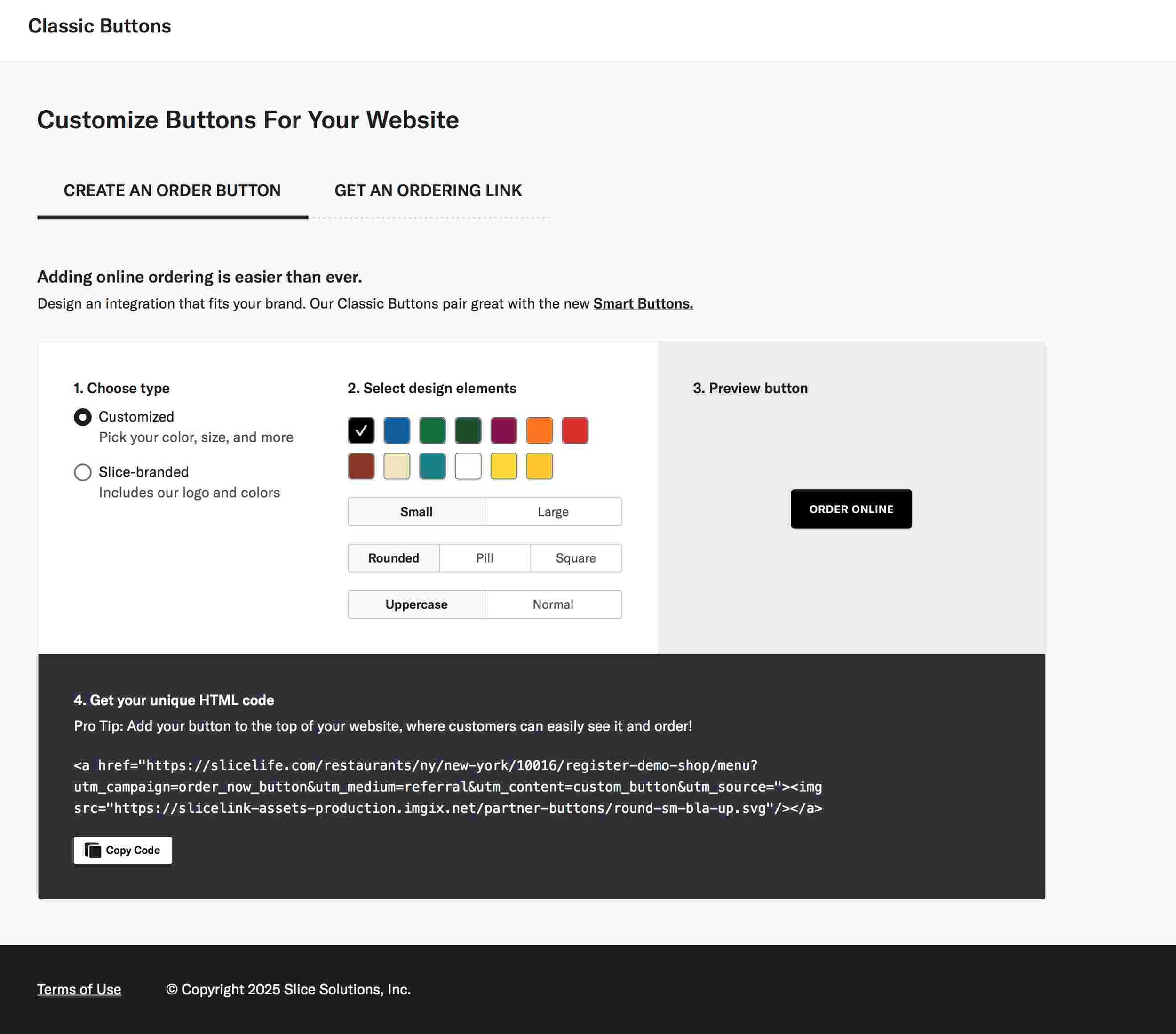
The Classic Buttons page allows you to create and customize order buttons for your website. These buttons help customers place orders directly from your site.
1. Choose Type: Select between a customized button or a Slice-branded button.
2. Select Design Elements: Adjust the button’s color, size (small or large), shape (rounded, pill, or square), and text style (uppercase or normal).
3. Preview Button: View a live preview of your button design to ensure it aligns with your branding.
4. Get Your Unique HTML Code: Copy the generated HTML code to embed the button on your website, allowing customers to order online easily.
Get An Ordering Link

The Get An Ordering Link tab provides a direct URL to your shop’s menu for seamless online ordering.
How to Use: Copy the provided URL and integrate it into your website, existing buttons, or other platforms to enable customers to place orders directly.
This link can be used anywhere you want to provide quick access to your menu, such as in emails, social media, or custom website buttons.