
Manage
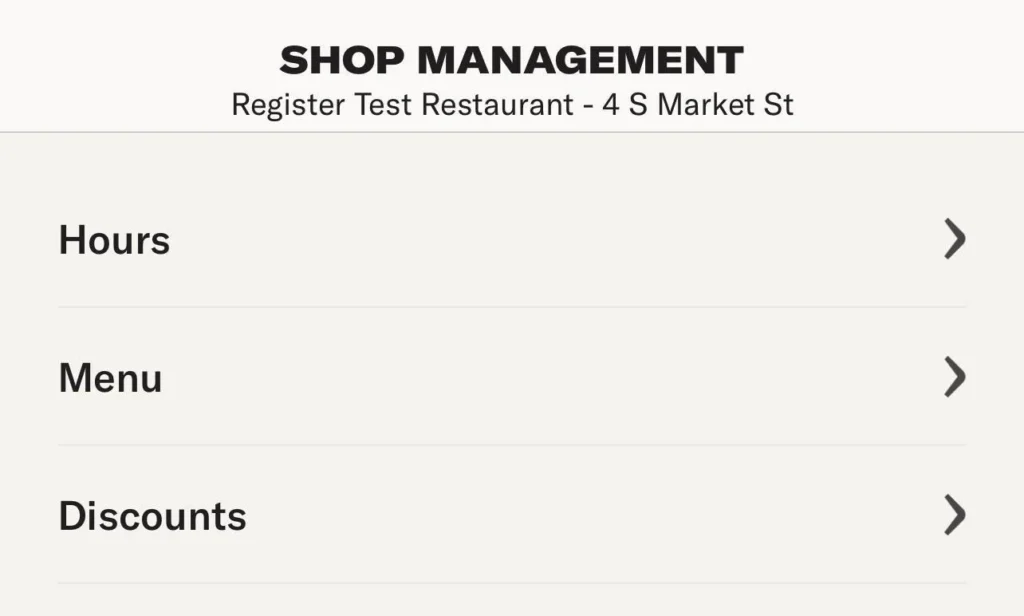
The Manage page allows you to control key aspects of your shop’s operations, making it easy to update settings, menu items, and promotions.
- Hours – Set or adjust your business hours, including special holiday hours.
- Menu – Edit your menu, update item availability, change prices, or add new items.
- Discounts – Create and manage promotions to attract customers and boost sales.
Hours
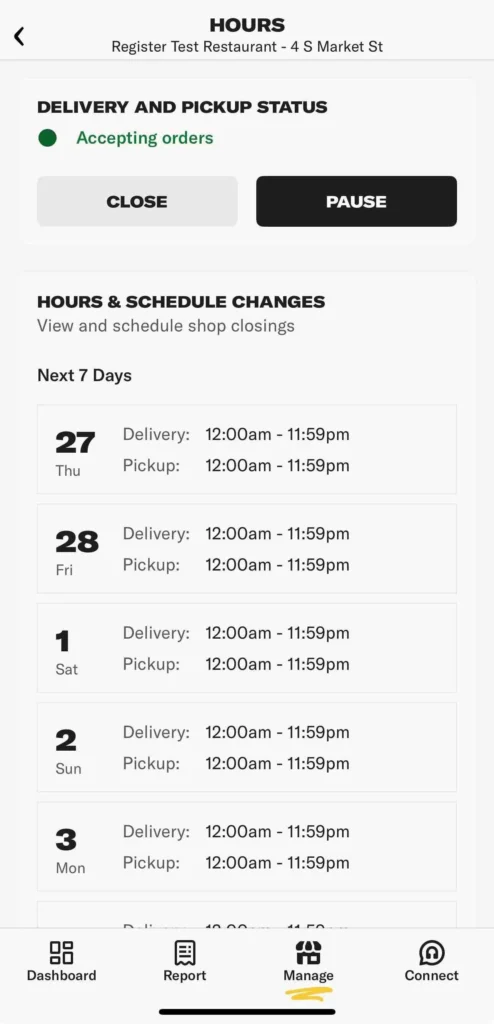
The Hours page allows you to manage your shop’s operating schedule for delivery and pickup.
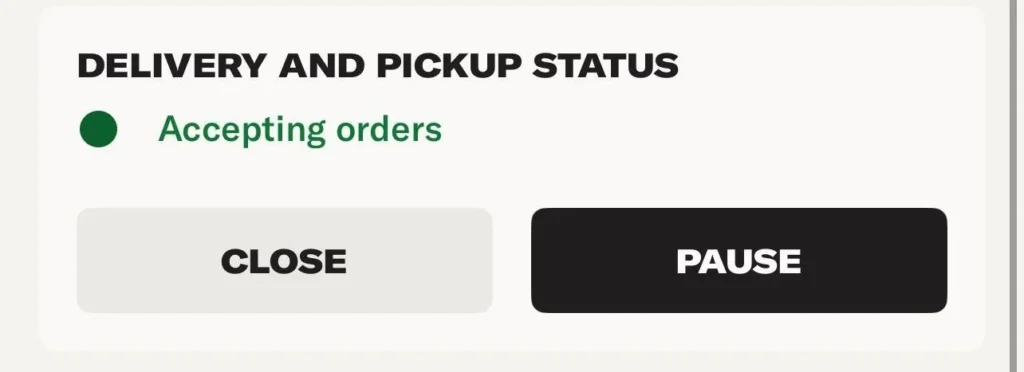
Delivery and Pickup Status: Displays whether your shop is currently open, paused, or closed. Use the Pause or Close buttons to update availability instantly.
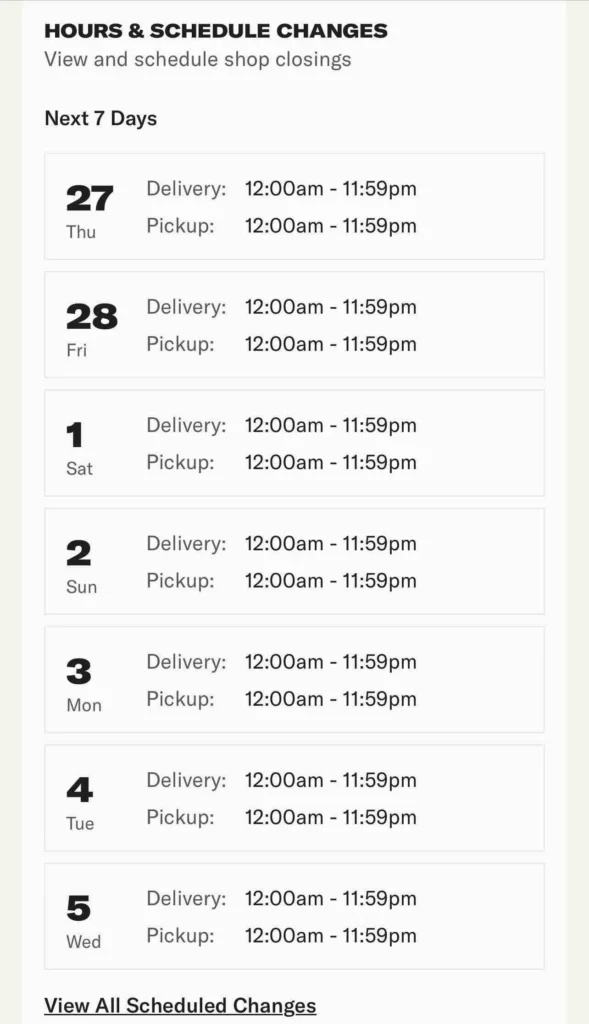
Hours & Schedule Changes: Shows your shop’s hours for the next seven days, with separate times for delivery and pickup.
View All Scheduled Changes: See upcoming adjustments to your shop’s hours.
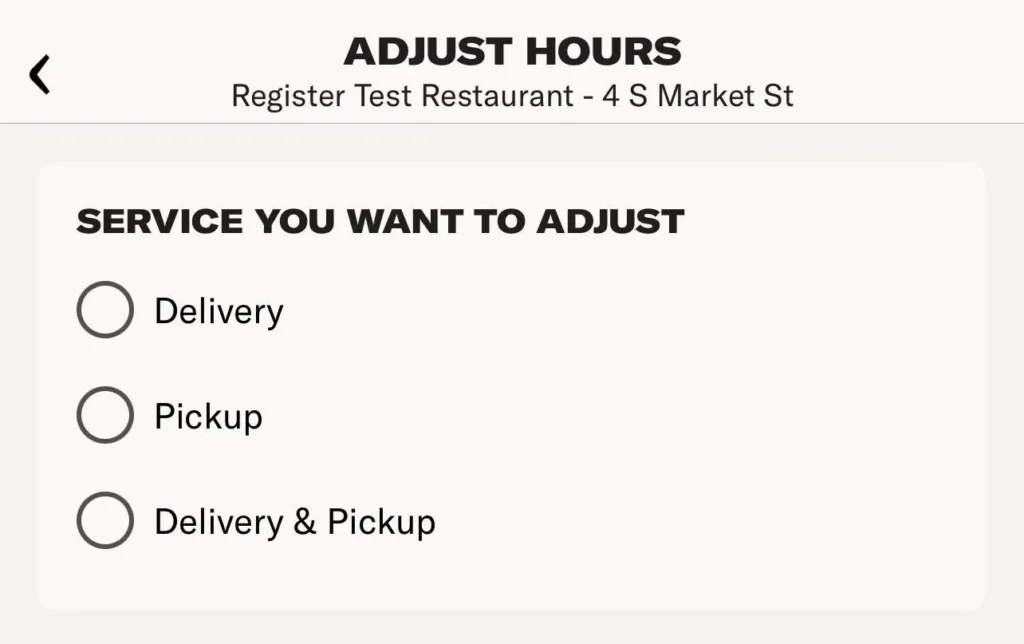
Adjust Hours: Update your regular hours.
To adjust hours in the Owner’s App:
- Select Adjust Hours from the Hours page.
- Choose the service you want to adjust: Delivery, Pickup, or Delivery & Pickup.
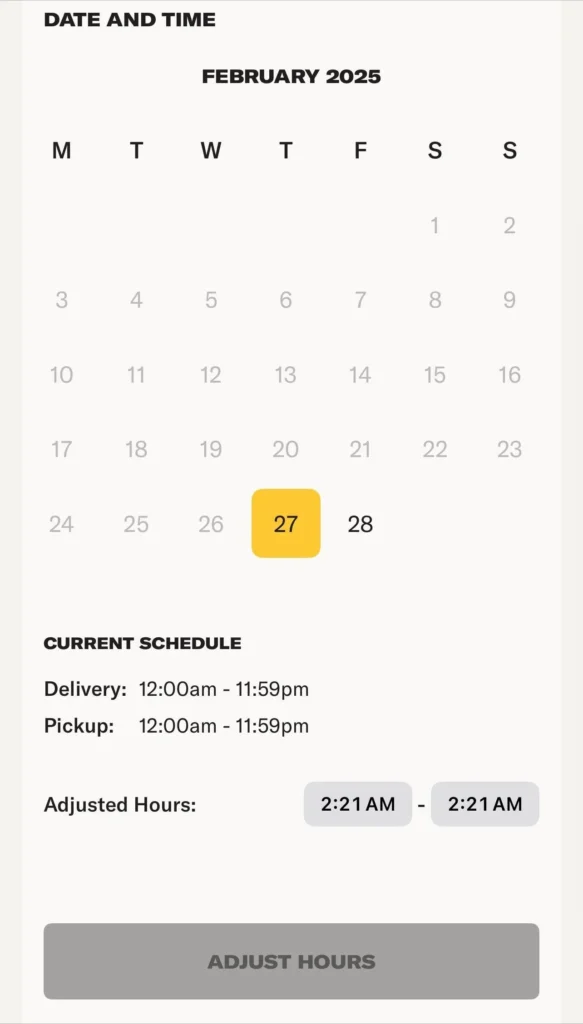
- Pick a date from the calendar.
- View the Current Schedule for that day.
- Set the new Adjusted Hours by selecting the start and end time.
- Tap Adjust Hours to save the changes.
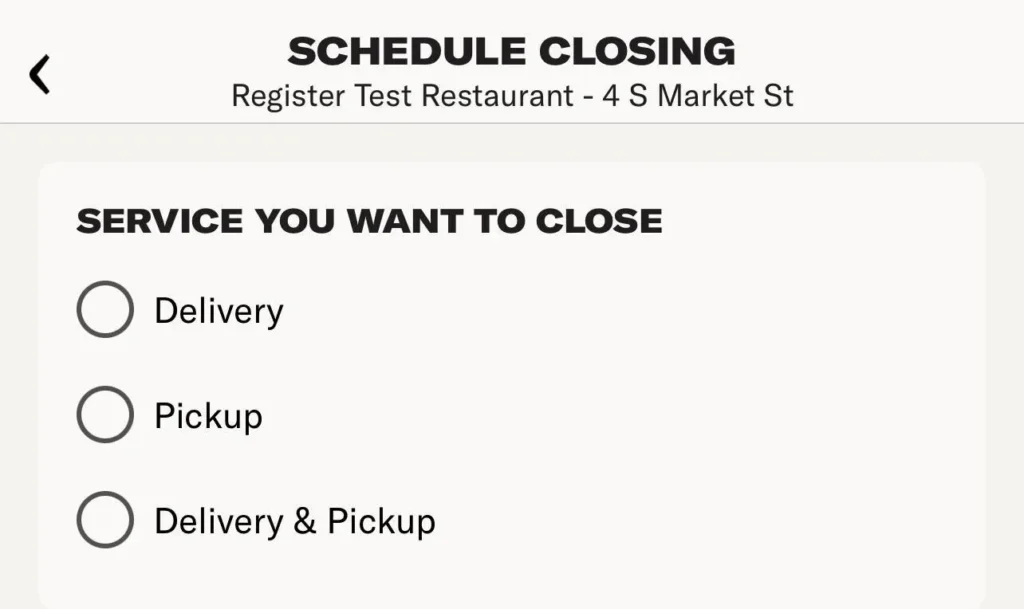
Schedule Closing: Plan temporary closures in advance.
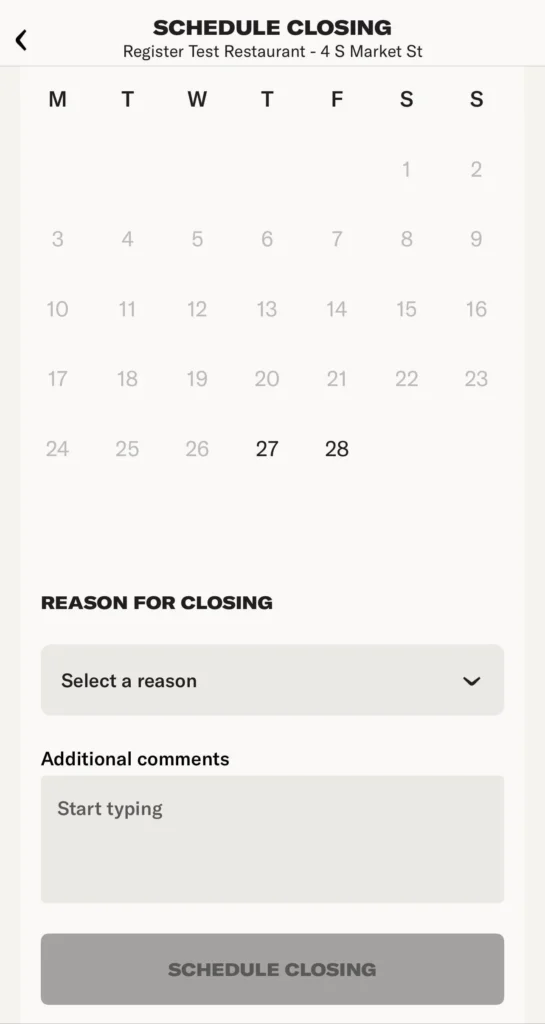
To schedule a temporary closing:
- Tap Schedule Closing from the Hours page.
- Select whether you want to close Delivery, Pickup, or Delivery & Pickup.
- Choose the date for the closure using the calendar.
- Select a reason for closing from the dropdown menu.
- (Optional) Add any additional comments.
- Tap Schedule Closing to confirm the temporary closure.
Menu
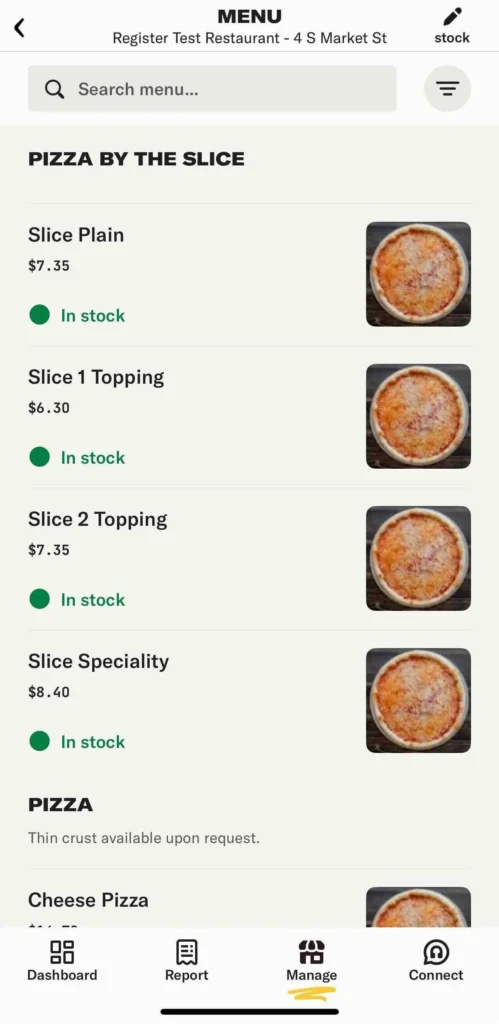
The Menu page allows shop owners to manage their menu items, update stock status, and make bulk edits.
Menu Item List: Displays all menu items, organized by category. Each item includes its name, price, stock status, and image if available.
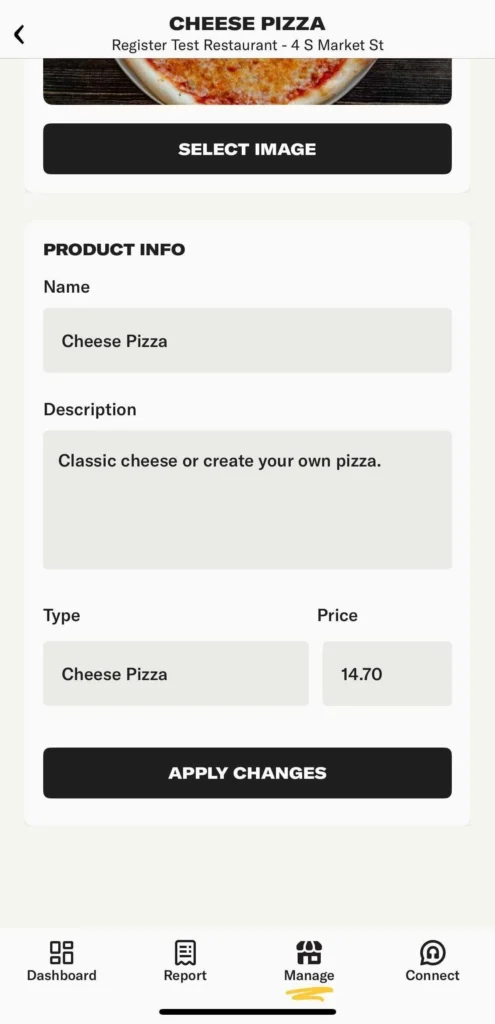
Editing Menu Items: Tap an item to update its name, description, and price.
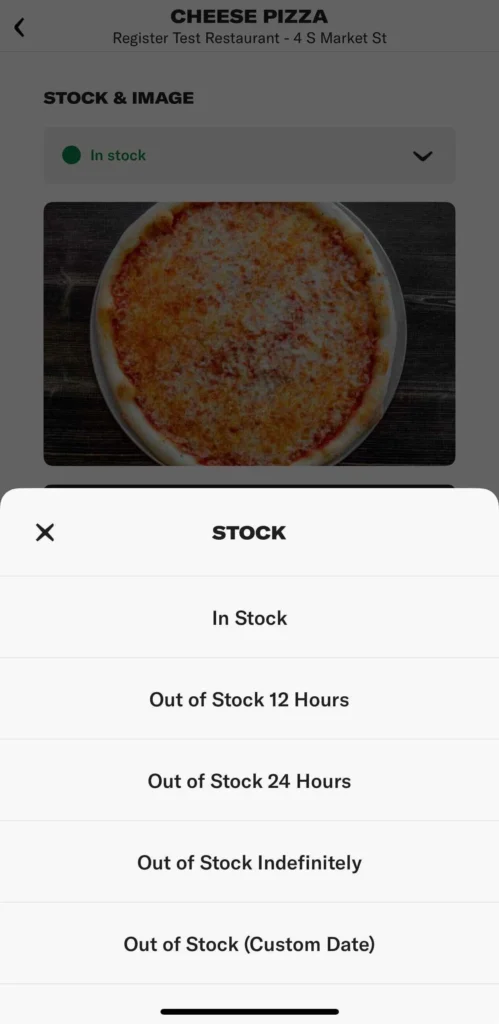
Stock Management: Tap an item to adjust its stock status.
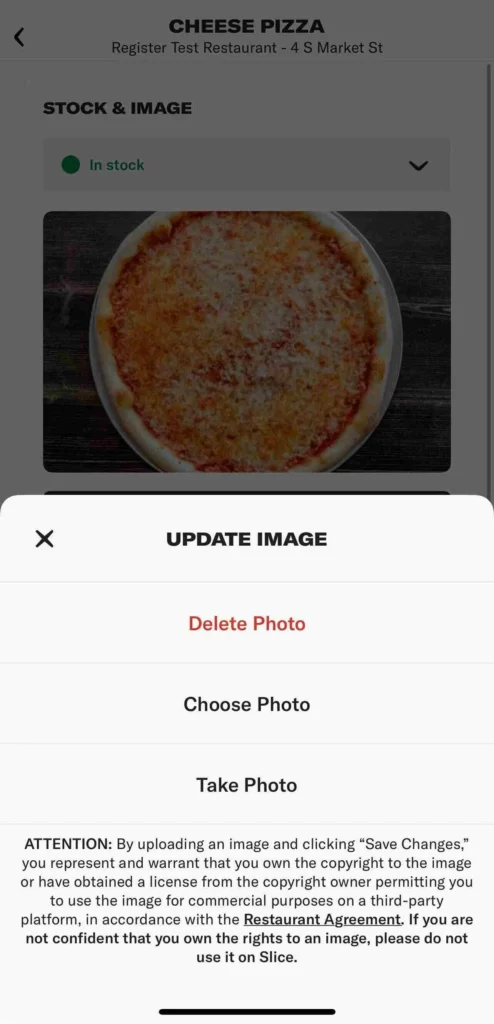
Image Management: Select an image from your device, take a new photo, or delete an existing image.
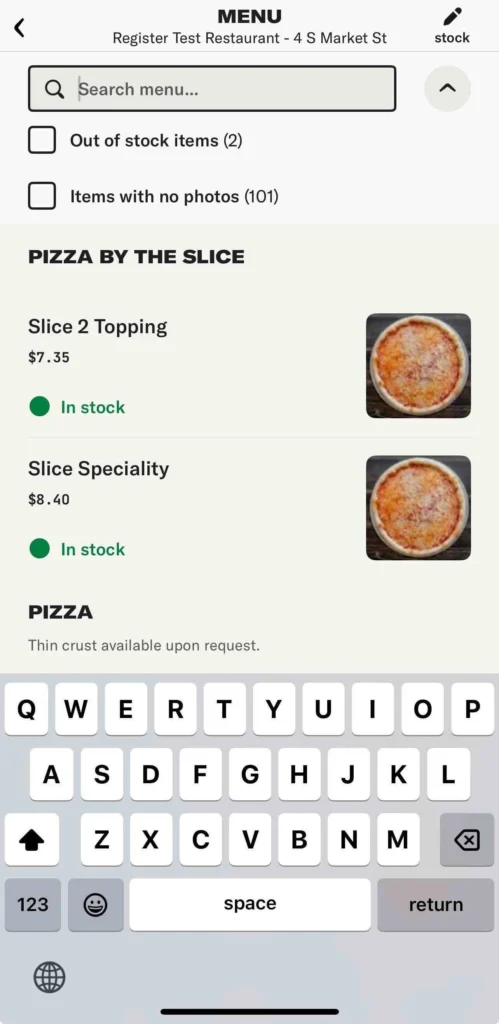
Search and Filters: Use the search bar to find specific menu items. Filters allow you to view Out of Stock Items and Items with No Photos.
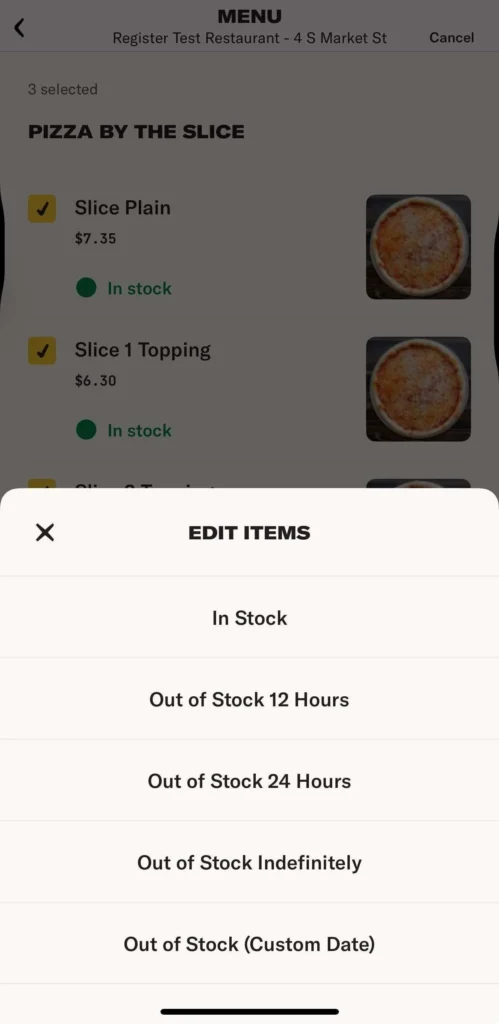
Bulk Edit: Select multiple items to change stock status at once.
Discounts
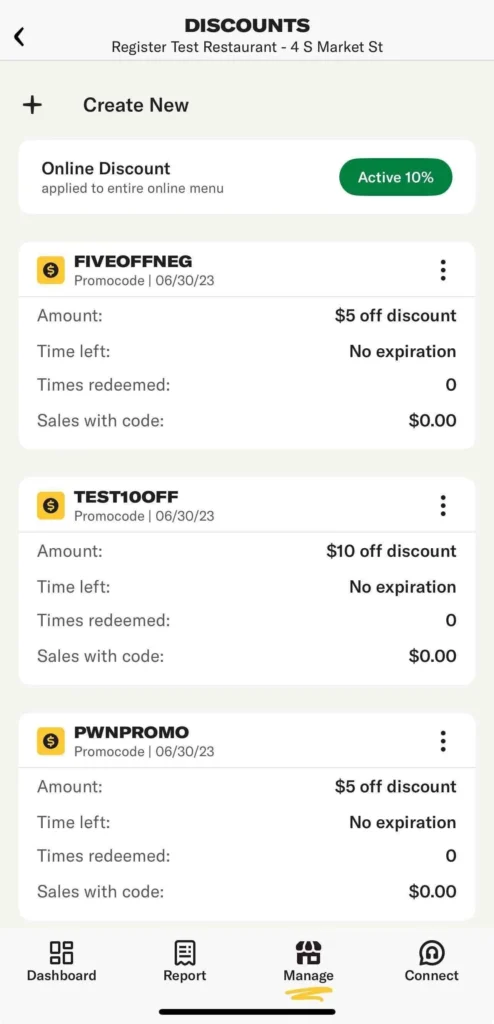
The Discounts page allows you to manage and create promotions for your shop. You can create three types of discounts to attract customers and boost sales:
- Online Discount – A percentage-based discount that applies to your entire online menu. It’s automatically visible to customers, does not require a promo code, and is fully funded by your shop.
- Campaign – A targeted discount sent directly to customers by Slice based on your business goals. Slice handles the customization and distribution, making it easy to reach the right audience.
- Promo Code – A custom discount code you create and distribute yourself. It’s fully customizable, allowing you to set conditions and share them with specific customers or promotions.
Each discount type offers ways to encourage repeat business and attract new customers.
Online Discount
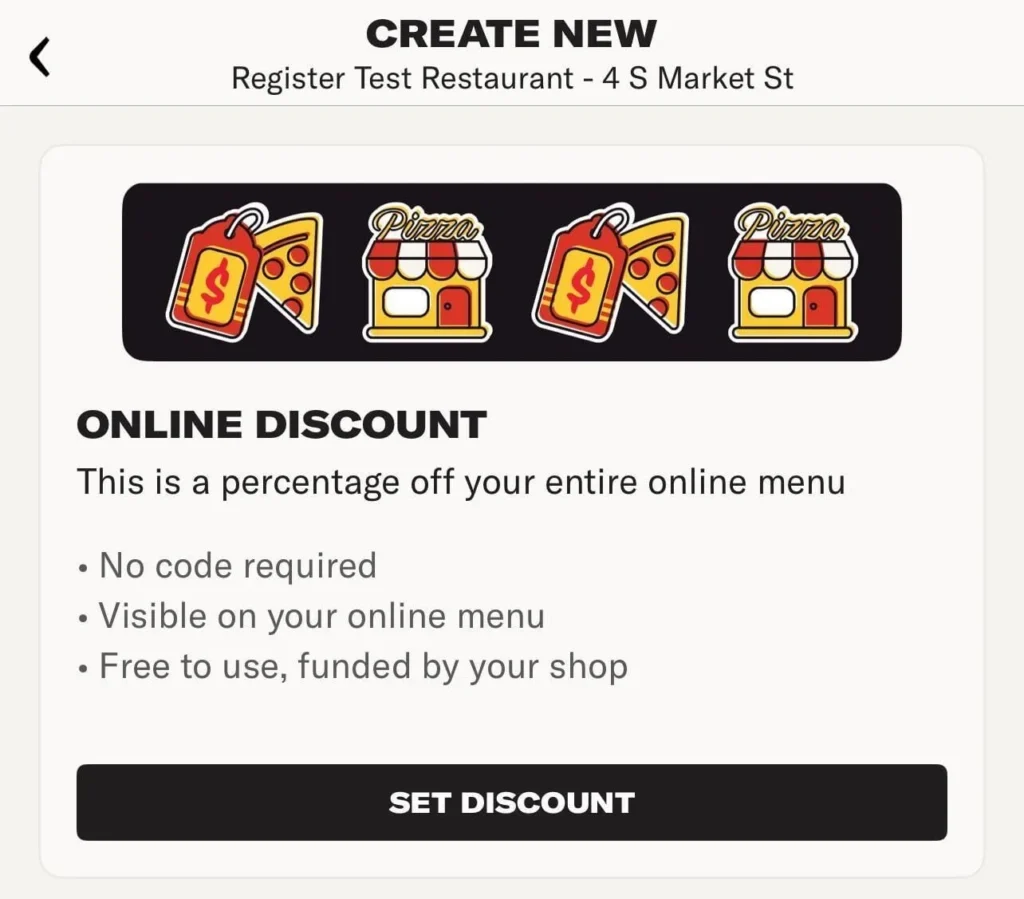
Online Discounts will automatically apply to all orders placed through your online menu. To create a new online discount for your Slice Online Orders:
1. Tap Discounts under the Management tab in your Owner’s App.
2. Tap + Create New to start a new discount.
3. Under Online Discount, tap Set Discount.
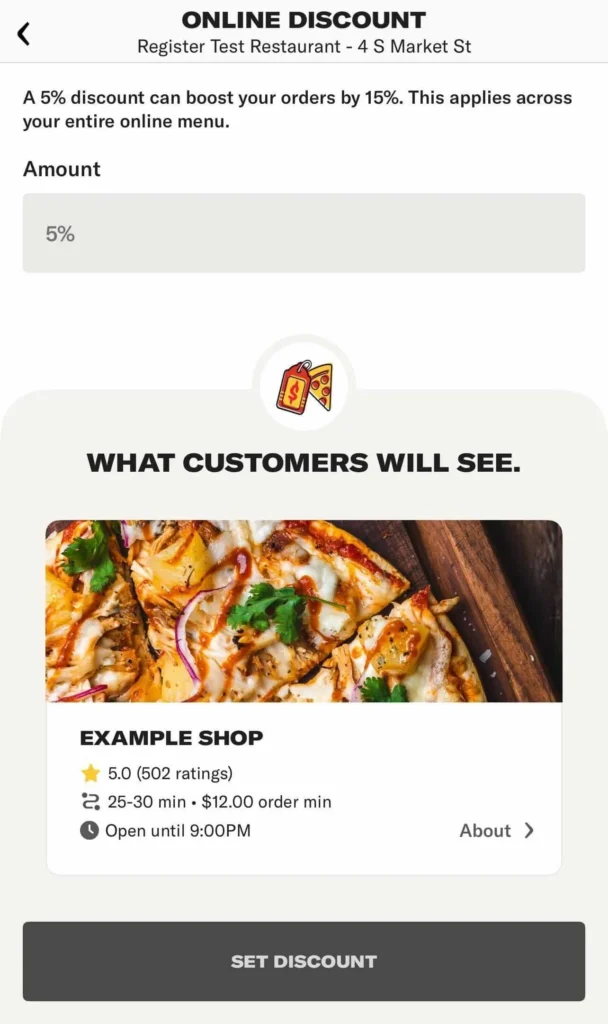
4. Set a fixed percentage (e.g., 5%).
5. Tap Set Discount to apply it.
Campaign
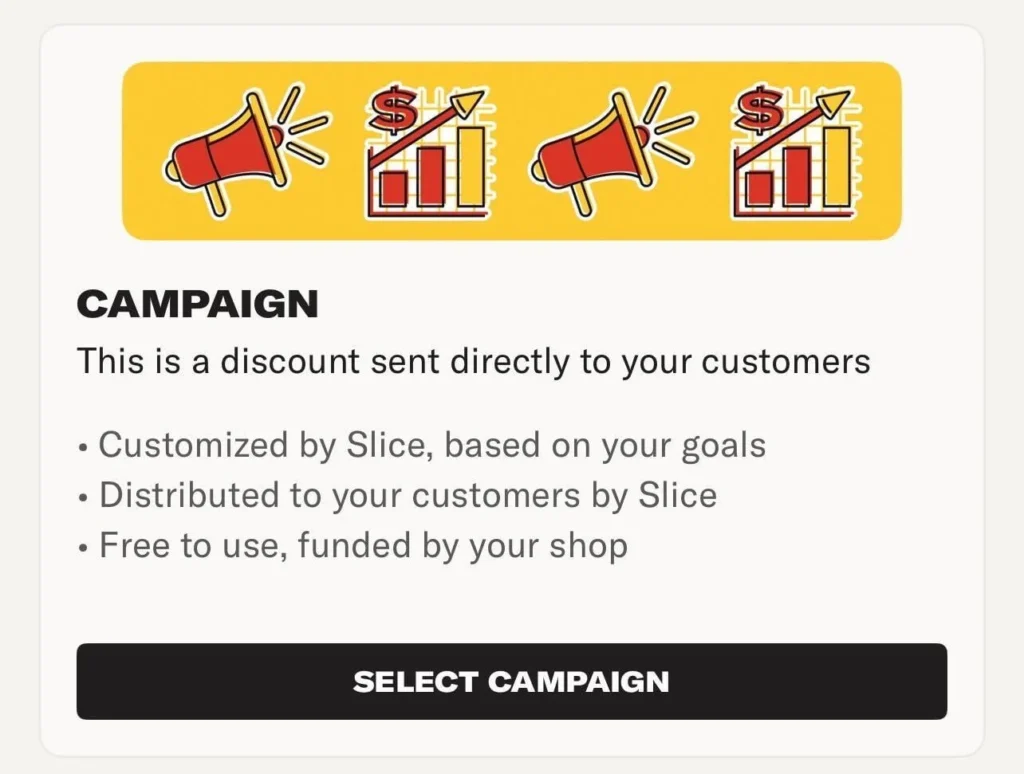
Campaign discounts are sent directly to select customers to encourage repeat orders. These deals are customized by Slice based on your goals and are distributed through the Slice app. To create a new Campaign discount in your Owner’s App:
1. Tap Discounts under the Management tab in your Owner’s App.
2. Tap + Create New to start a new discount.
3. Under Campain tap Select Campaign.
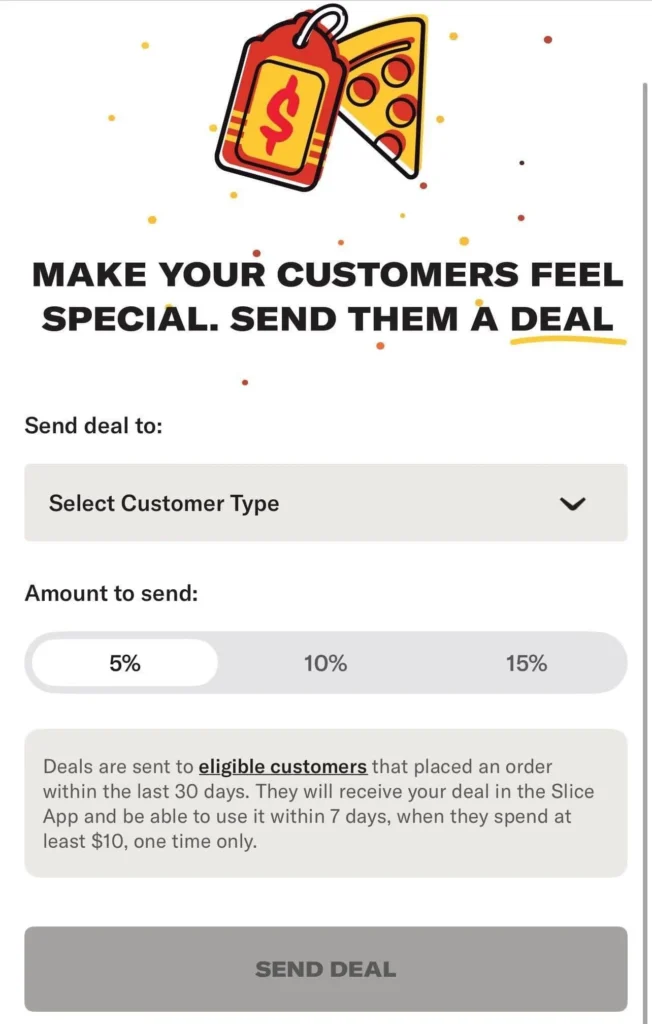
4. Select the Customer Type you want to send this deal to.
5. Select a discount amount (5%, 10%, or 15%).
6. Tap Send Deal to finalize and distribute your discount.
Promo Code
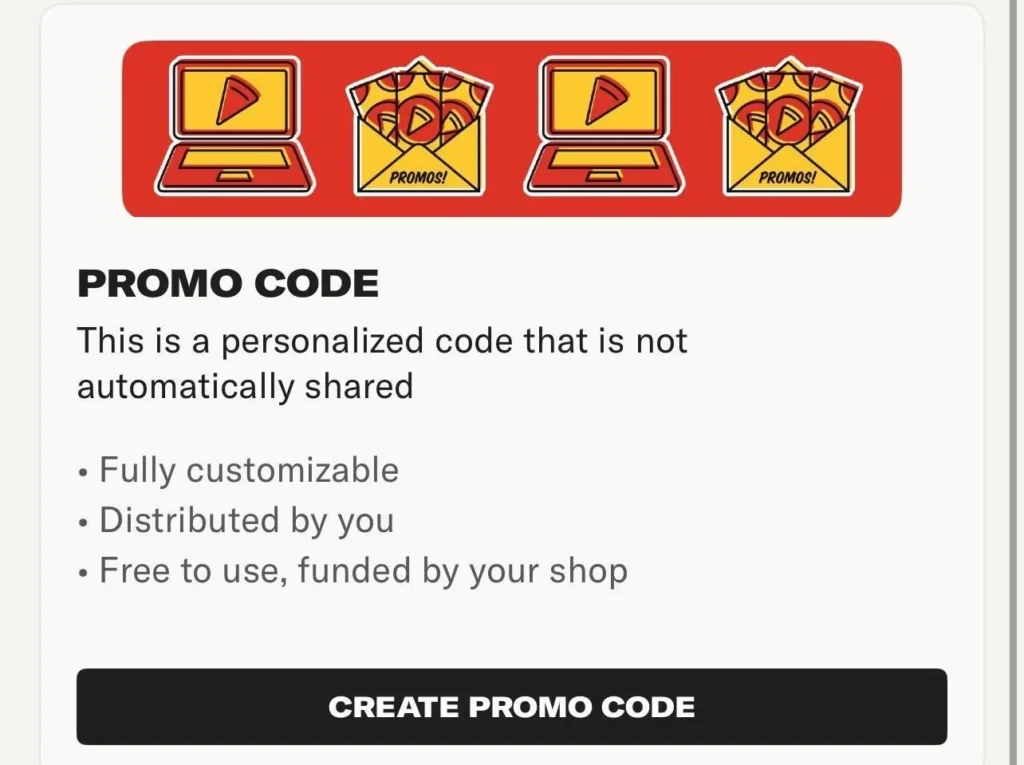
Promo Codes are personalized discounts that your customers must enter at checkout. These codes are fully customizable, allowing you to set the discount amount, expiration date, and usage limits. Unlike other discounts, promo codes are not automatically shared—you decide how and where to distribute them. To create a new Promo Code in your Owner’s App:
1. Tap Discounts under the Management tab.
2. Tap + Create New to start a new discount.
3. Scroll down to Promo Code and tap Create Promo Code.
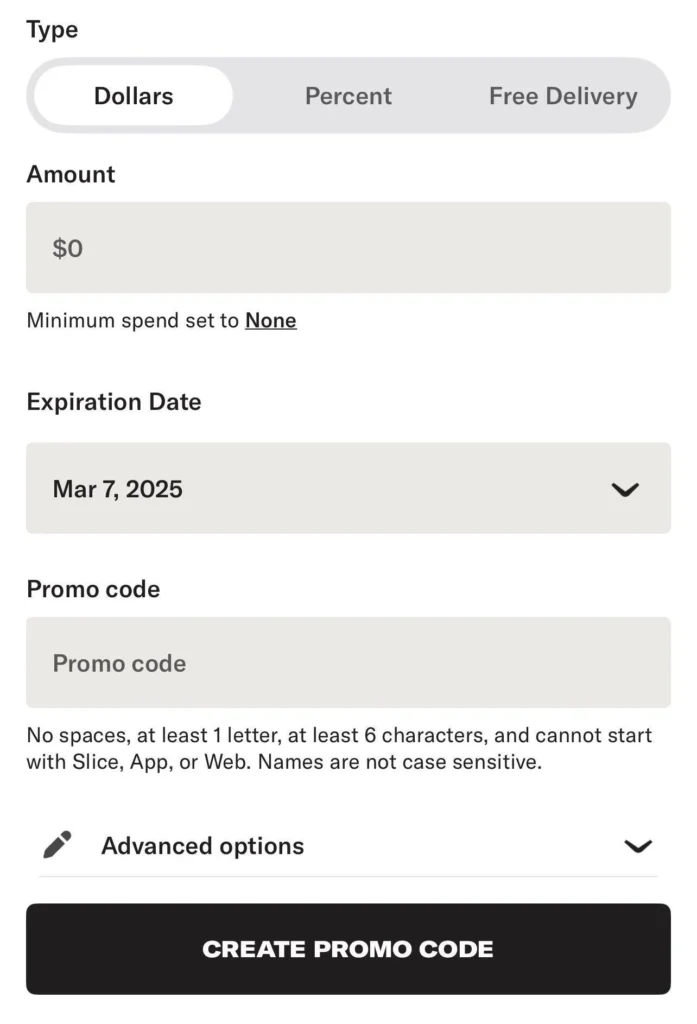
4. Select the discount type – Fixed dollar amount, percentage off, or free delivery.
5. Enter the discount amount – Set the dollar value or percentage.
6. Set an optional expiration date for the promo code.
7. Enter a custom promo code, ensuring it meets the required format.
8. (Optional) Tap Advanced Options to set a minimum spend or limit usage to one per customer.
9. Tap Create Promo Code to activate it.
Once created, you can share the promo code with customers through social media, email, or in-store promotions. Previous