
Driver App
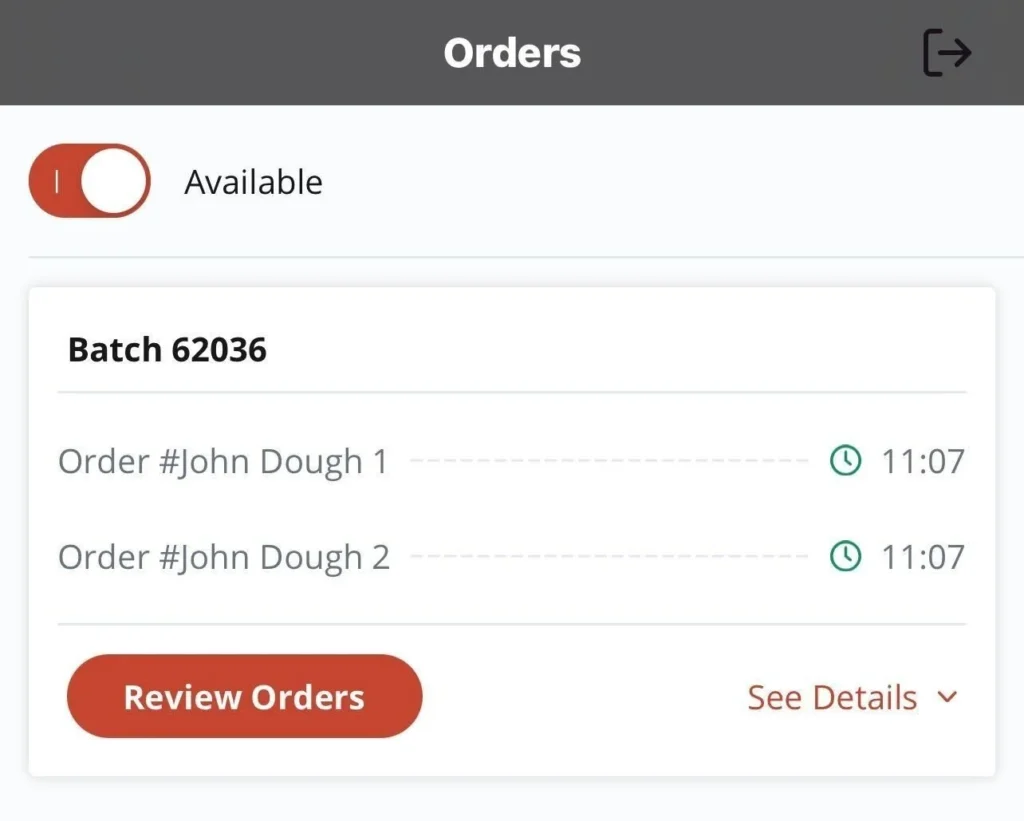
The Driver App helps you manage deliveries from start to finish. It lets you assign orders, track progress in real time, and see when each delivery is complete. Whether you’re working with one driver or a full team, you’ll have up-to-date info on driver availability, order status, and completed deliveries. The system also tracks which driver took each order, so you can review delivery history and run reports whenever needed.
Getting Started
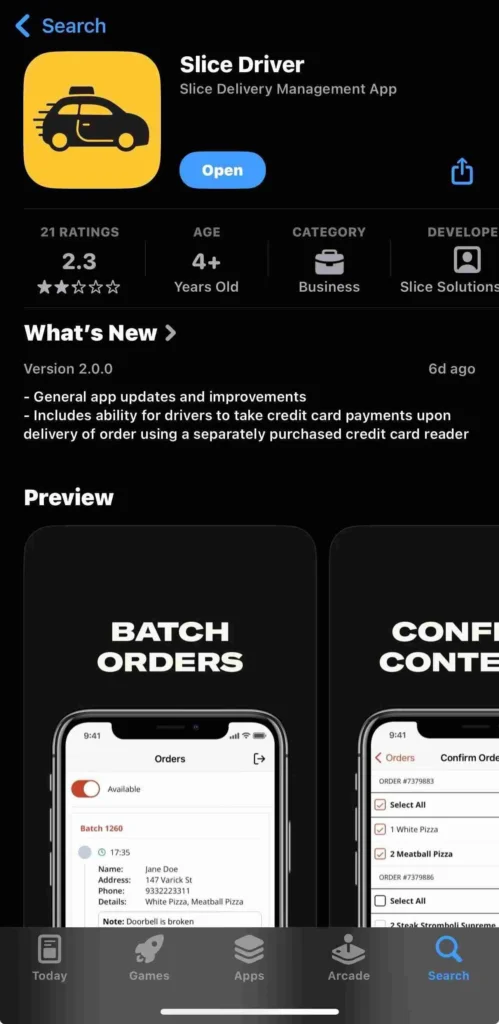
To download the Slice Driver App, go to the App Store (iOS, Android) on your phone and search for Slice Driver. Find the app named Slice Driver, then tap Download to install it.
Next, contact Slice Support at (888) 974-9928 to add your driver’s login to your account. Each driver needs a unique email address to log in. If a driver doesn’t have an email, you can create a placeholder using the format [email protected].
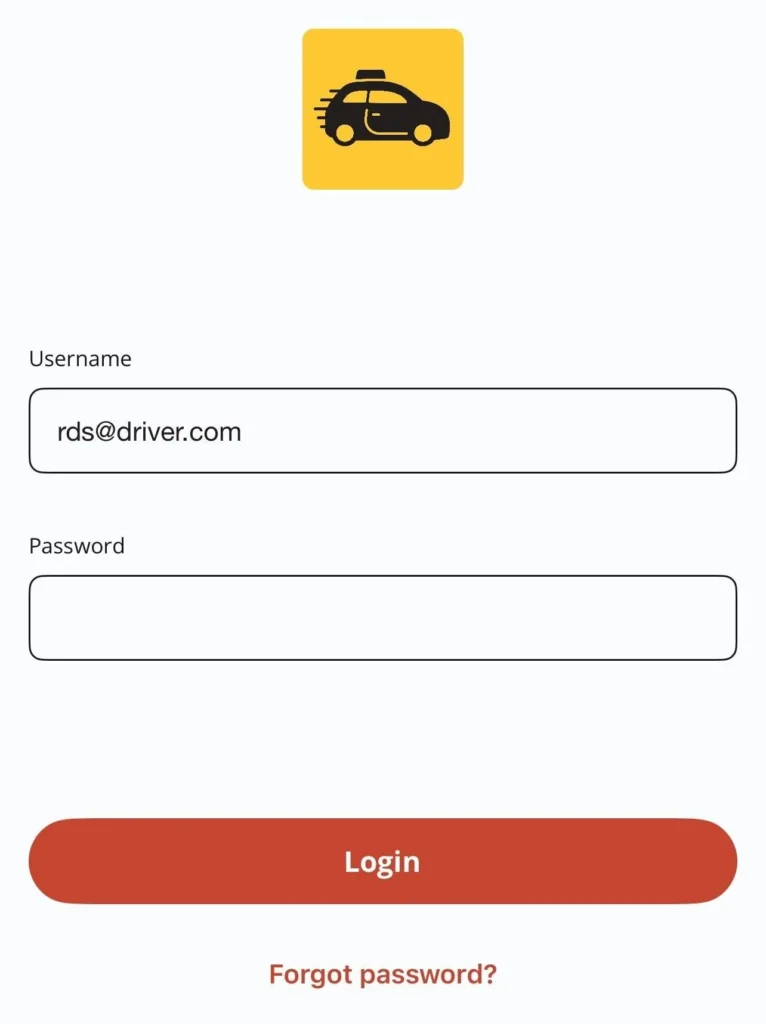
Open the app on your phone and enter the login credentials you provided to the Slice Support team. If you forgot your password, tap Forgot Password on the login screen or call (888) 974-9928 for help.
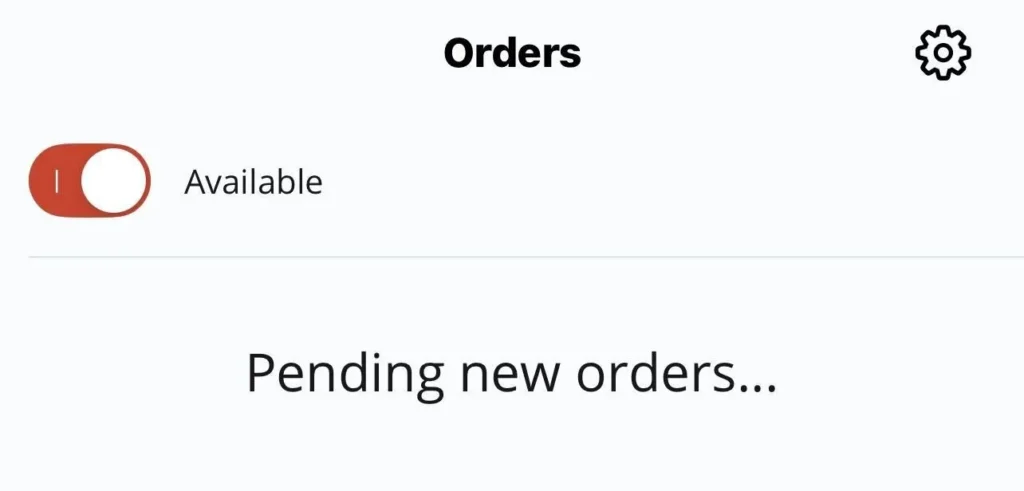
Once you’re logged in, tap the Available toggle to receive batch assignments. Drivers must be logged in and marked Available to be assigned a new batch.
The Driver App does not send alerts for new batches, so drivers need to check the app to see when a batch has been assigned.
Delivering Orders
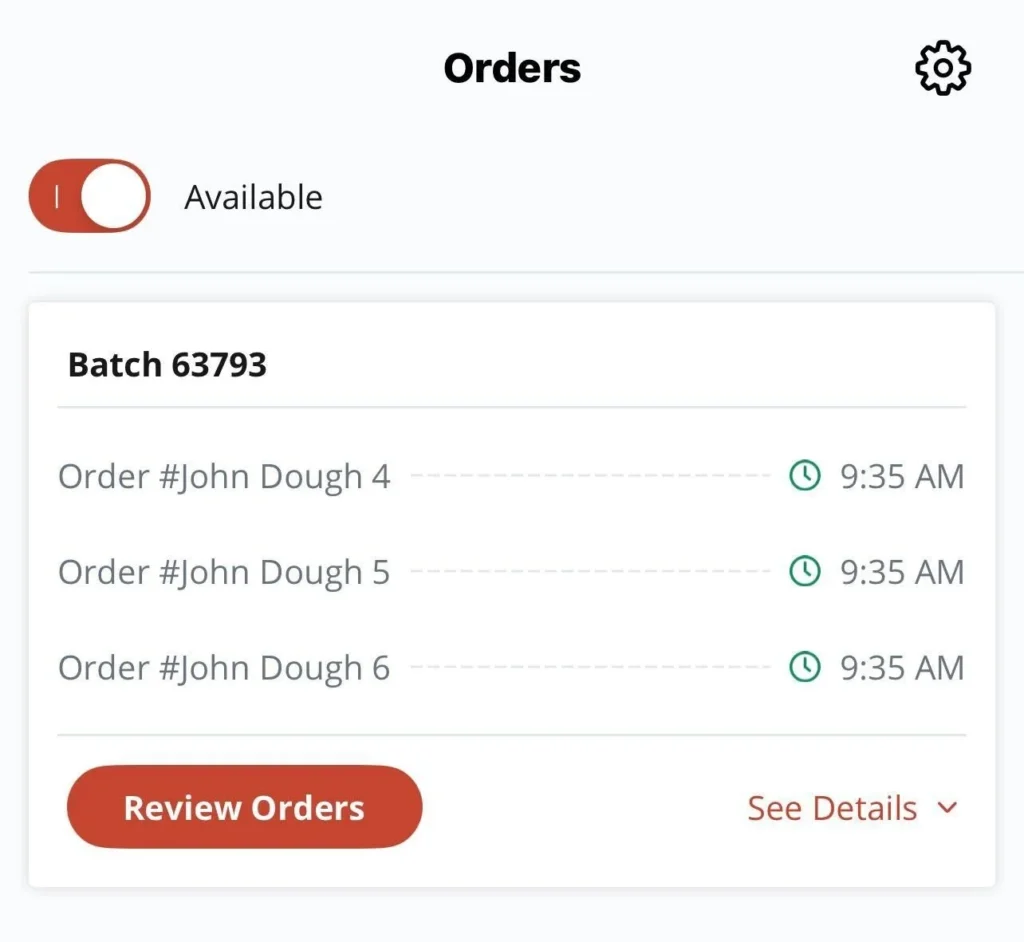
When you receive a delivery batch, start by reviewing each order and confirming you have all the items.
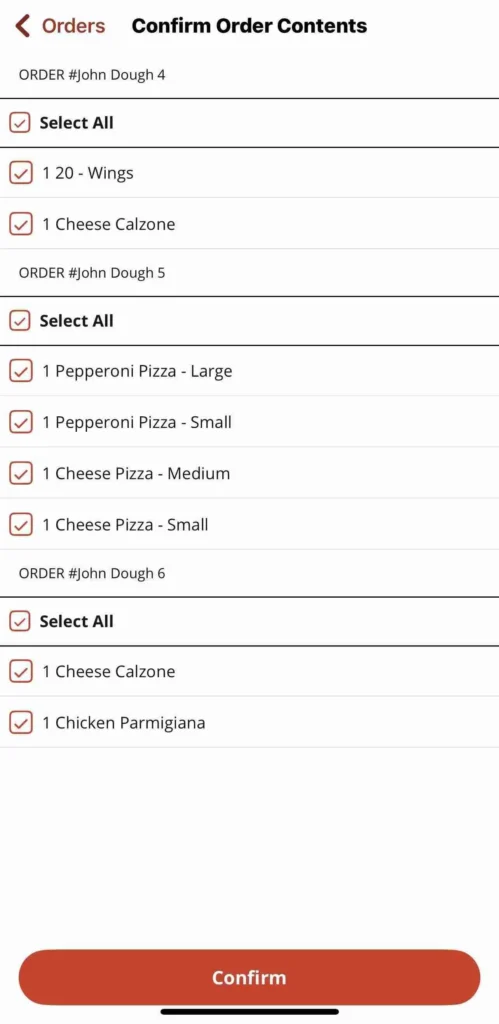
Tap Confirm to begin the delivery. This will open the map view.

If needed, tap Start Navigation to use GPS directions to the customer. Once the food has been delivered, tap Confirm Delivery.
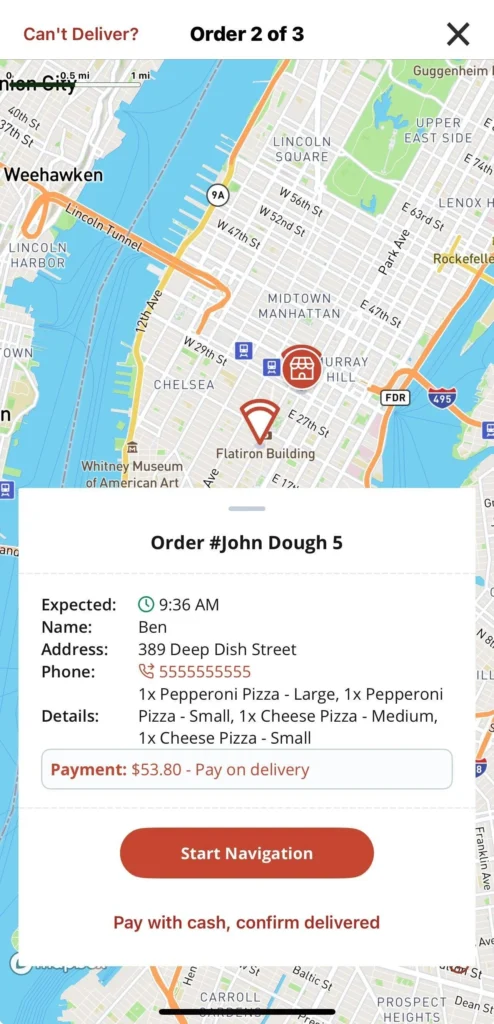
The app will automatically bring up the next order in the batch.
If an order requires payment on delivery, it will be clearly marked.
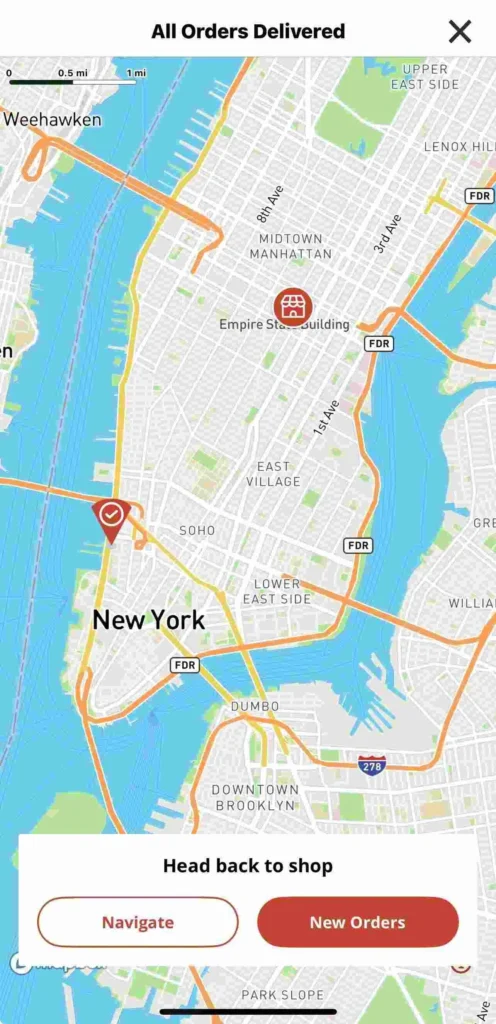
After all orders in the batch are delivered, you’ll have the option to navigate back to the shop and wait for your next assignment.
Mobile Card Reader
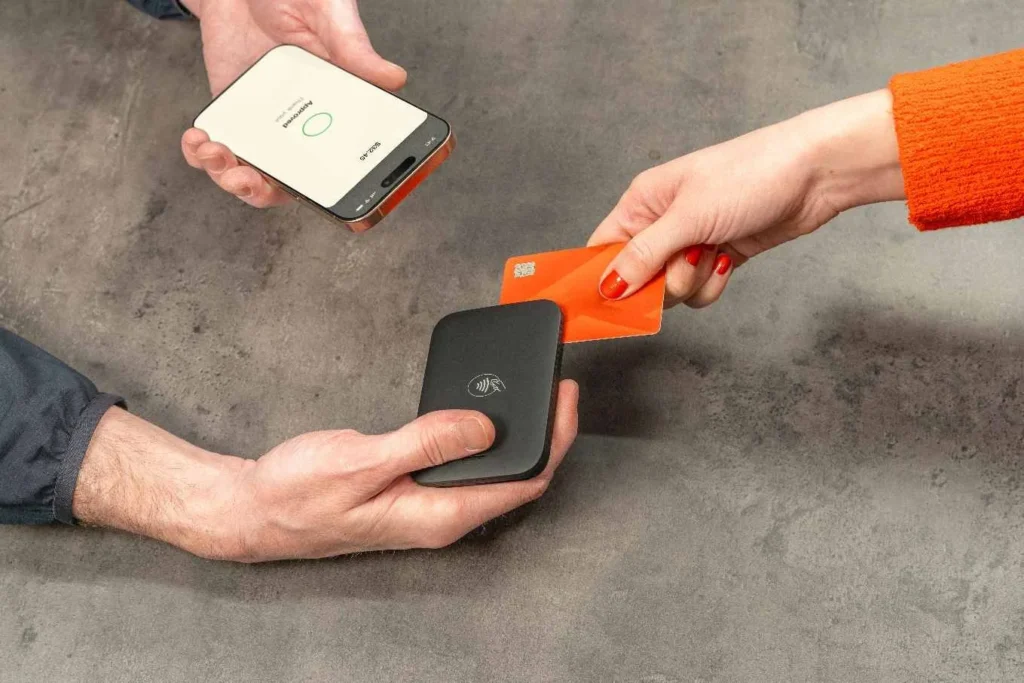
You can now take card payments when your drivers deliver Slice Register orders. This gives your customers a fast, secure way to pay — no more reading card numbers over the phone. Even more importantly, it helps protect your shop from chargebacks by making the transaction card-present, reducing fraud, and guaranteeing the lowest possible processing rate.
Already using Slice Register?
If your shop is already using Slice Register and you want to add mobile card readers, please contact your Account Manager. You can also call Slice Support at (855) 237-4992 to get started. Once you are configured for Delivery Management, follow the steps below to get set up with your mobile card readers.

Getting started
Before using the mobile card reader, make sure:
- Your driver is signed up using the Slice Driver App. If your driver is not yet enrolled, please get in touch with Slice at (855) 237-4992.
- Bluetooth is turned on in their phone’s settings.
- The phone has a passcode or Face ID set up.
The reader is compatible with iPhones (iOS 17 and later) and Android phones (Android 7 and later).
Connecting the reader
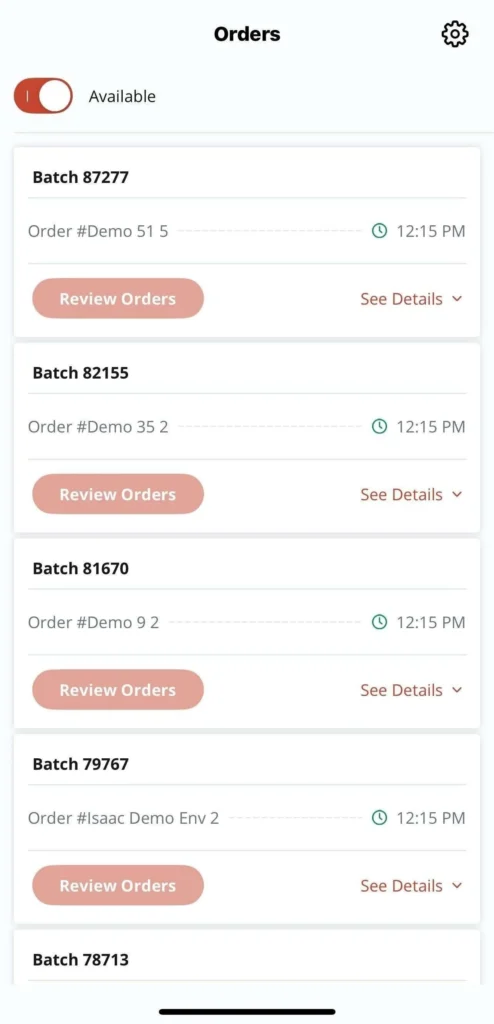
- Open the Slice Driver App and tap the gear icon in the top right to go to Settings.
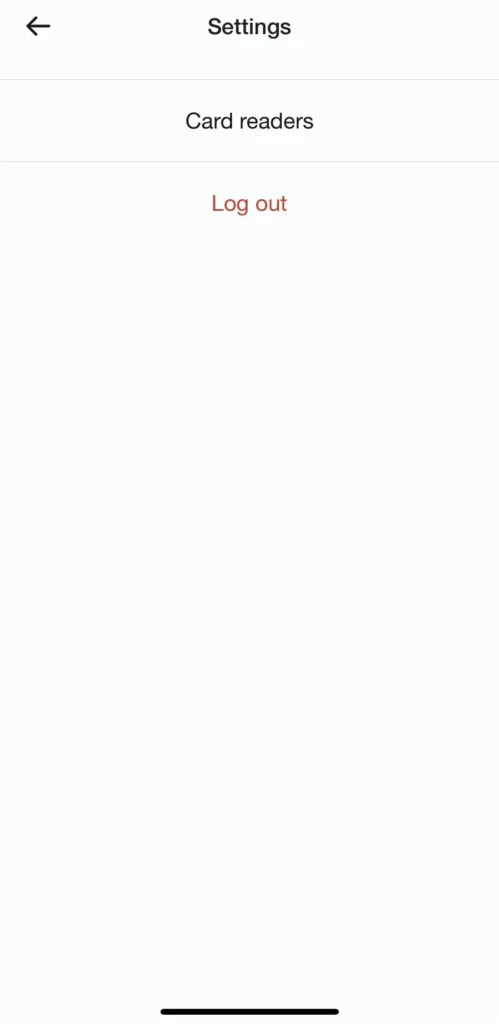
- Tap Card Readers.
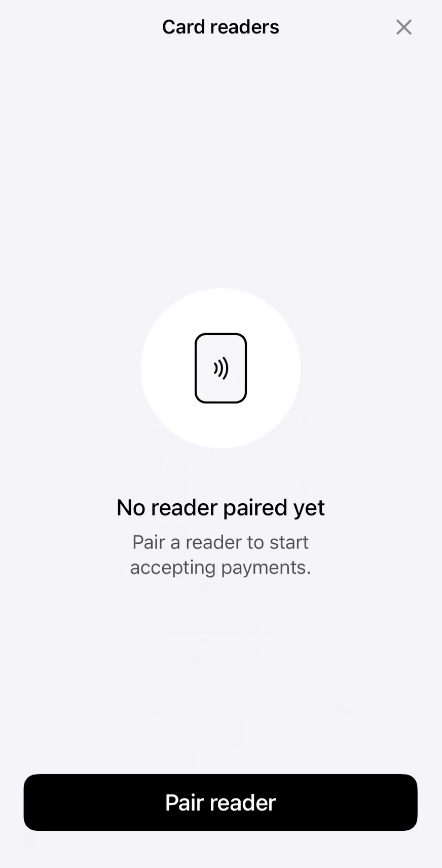
- Tap Pair Reader.
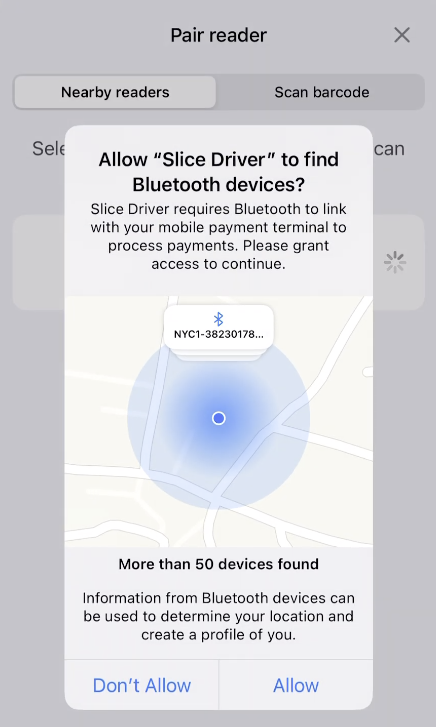
- When prompted, tap Allow to find nearby Bluetooth devices.
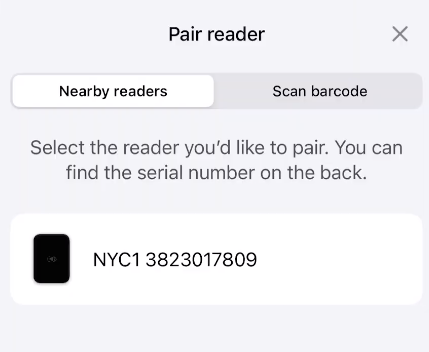
- Choose your reader from the list (you’ll see the serial number).
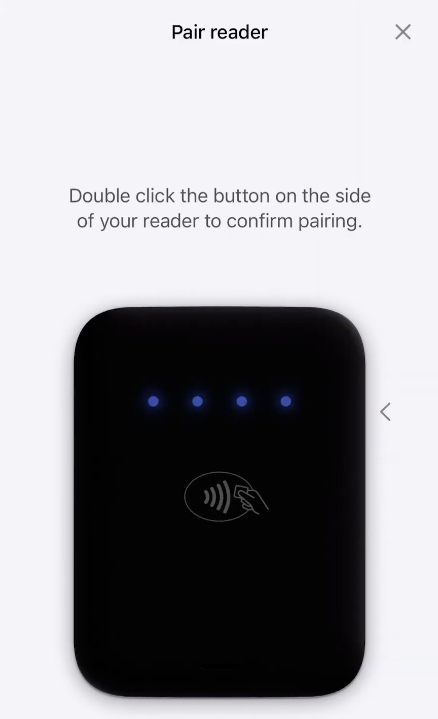
- Double-tap the button on the reader’s side to confirm the connection.
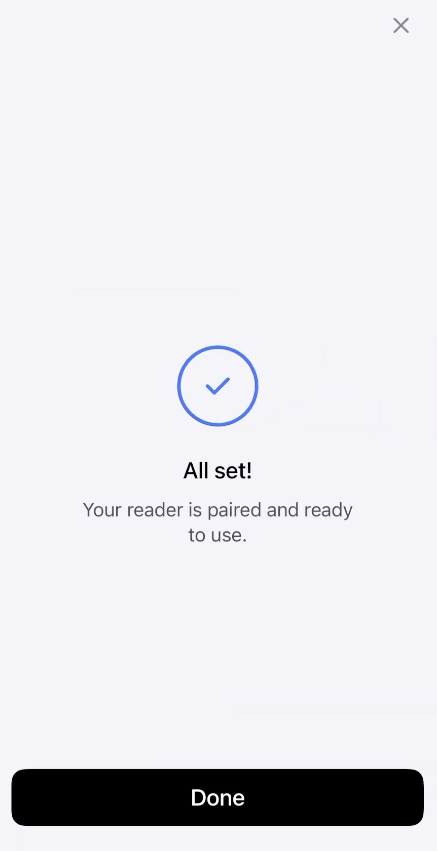
Once paired, the reader stays connected unless the app is removed or the phone is reset.
Updating the mobile card reader
Before a new reader can be used to take payments, it must be updated to the latest version. Here’s how to check and update the reader:
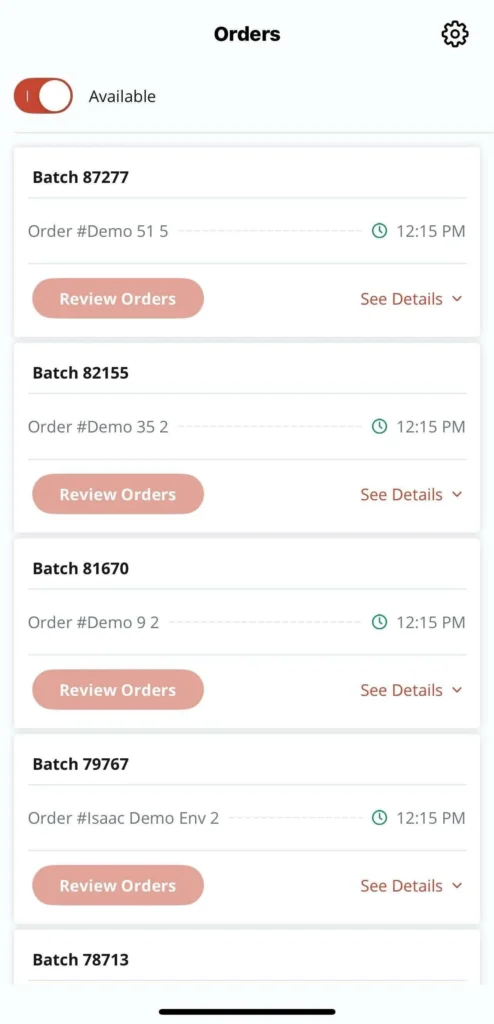
Open the Slice Driver App and tap the gear icon in the top right to go to Settings.
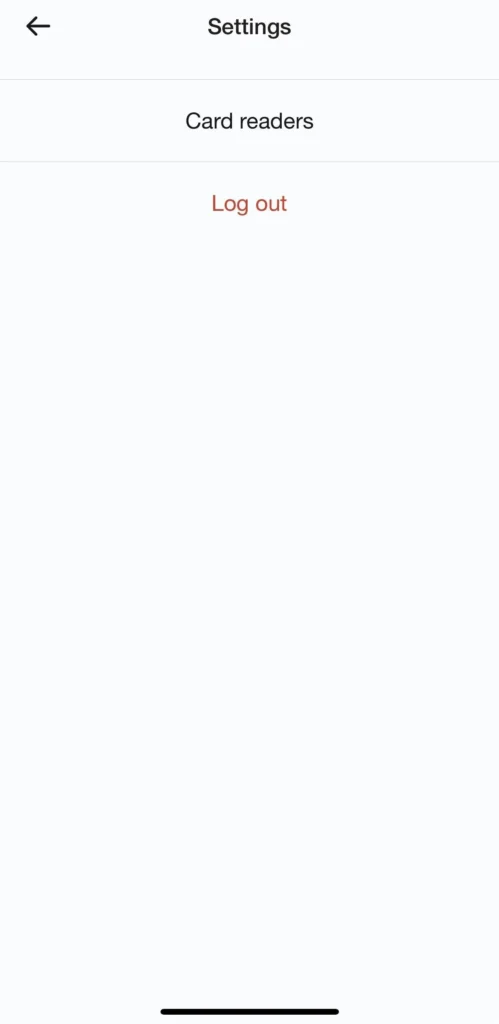
Tap Card Readers.
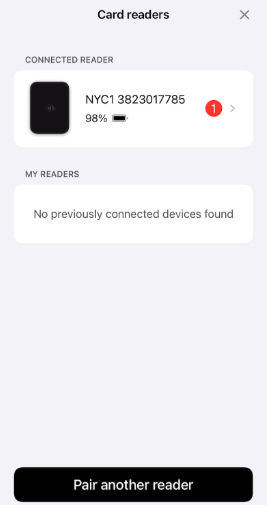
If there’s a red “1” next to a reader, it needs an update — tap the reader’s name.
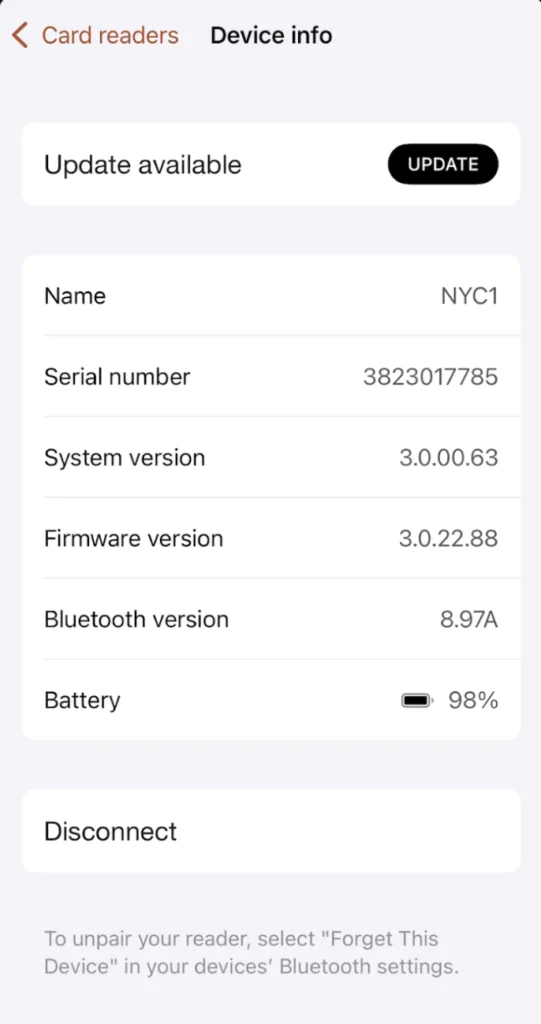
Tap Update, then tap Install when prompted.
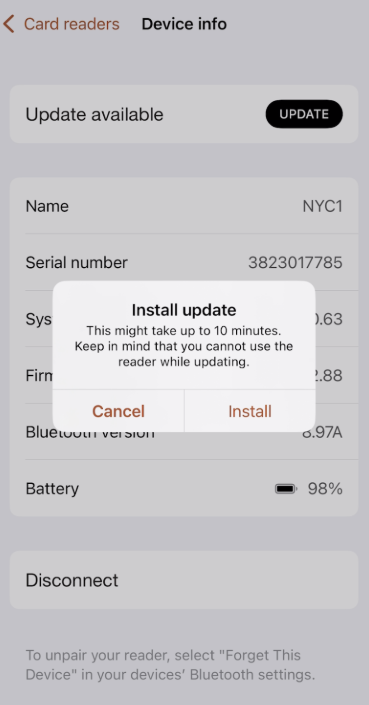
The update may take up to 10 minutes to complete. Make sure the driver keeps the app open and stays near the reader during the process.
Taking payment
Once the reader is paired and the driver has an assigned order, here’s how to accept a card payment at the door:
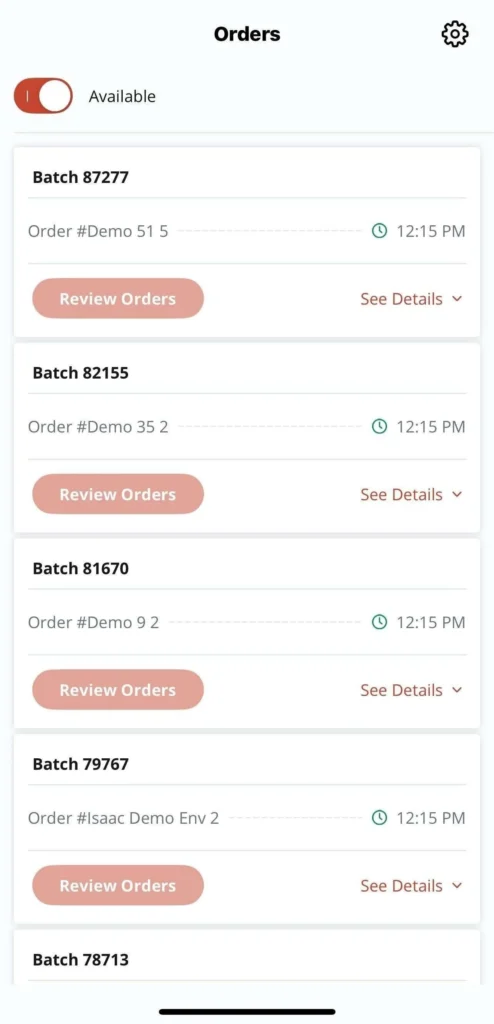
Open the Slice Driver App and tap Review Orders on the assigned batch.
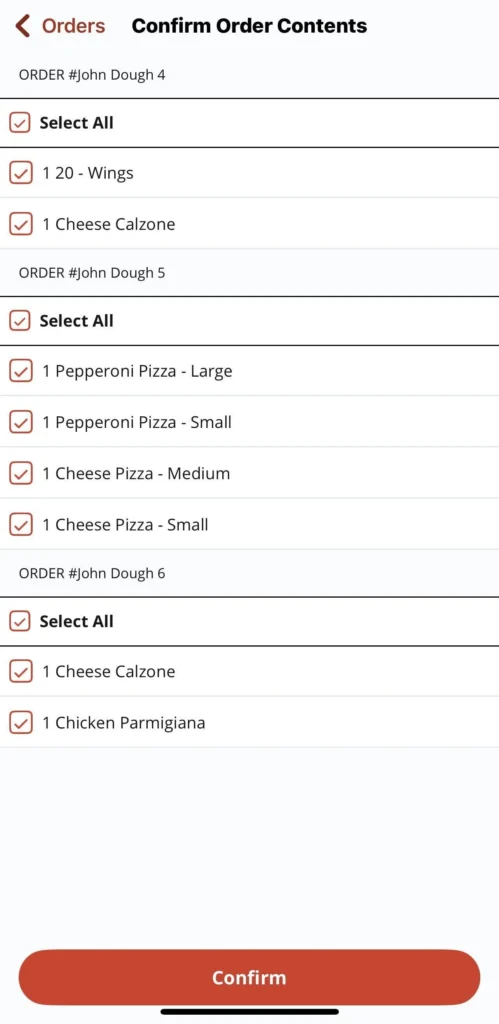
Review the order details. Confirm that you have all items for each order in the batch. Tap Confirm Order.
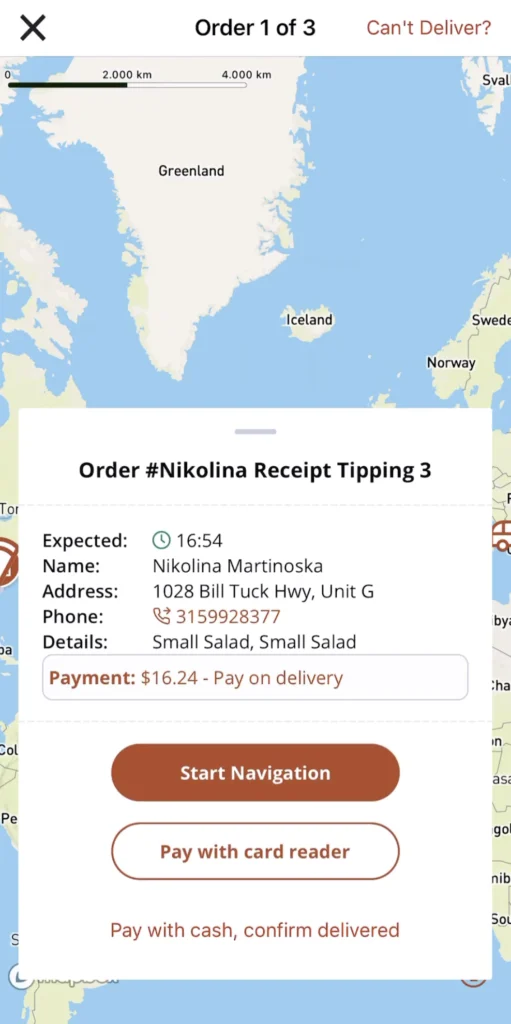
Tap Start Navigation to begin the route. Once at the delivery address, tap the “x” to close the navigation. Tap Pay with card reader.
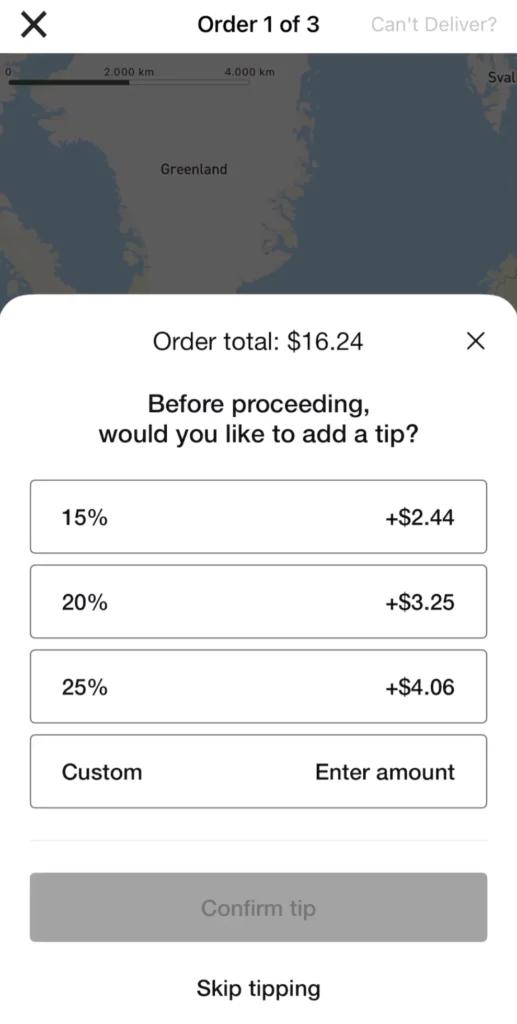
The screen will prompt the customer to add a tip (optional).
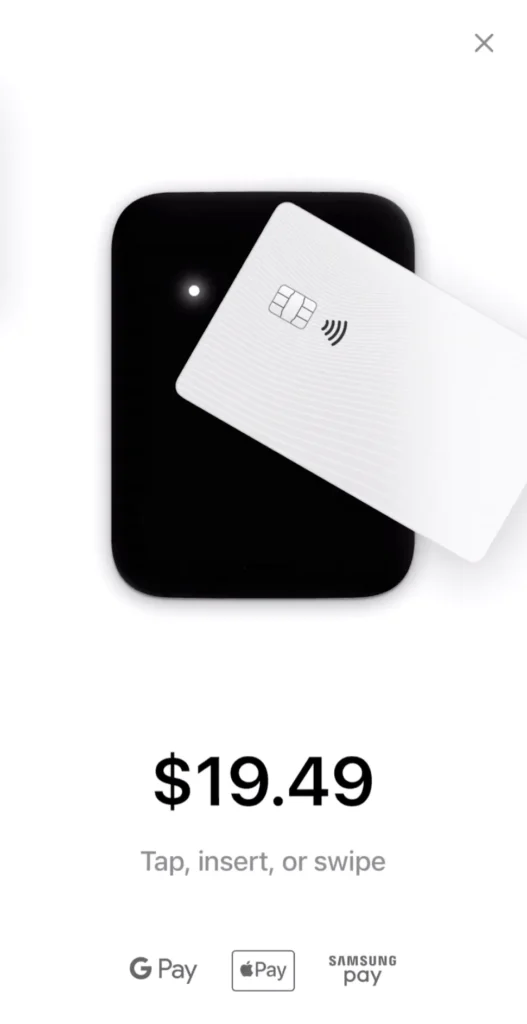
Ask the customer to insert, tap, or swipe their card on the reader.
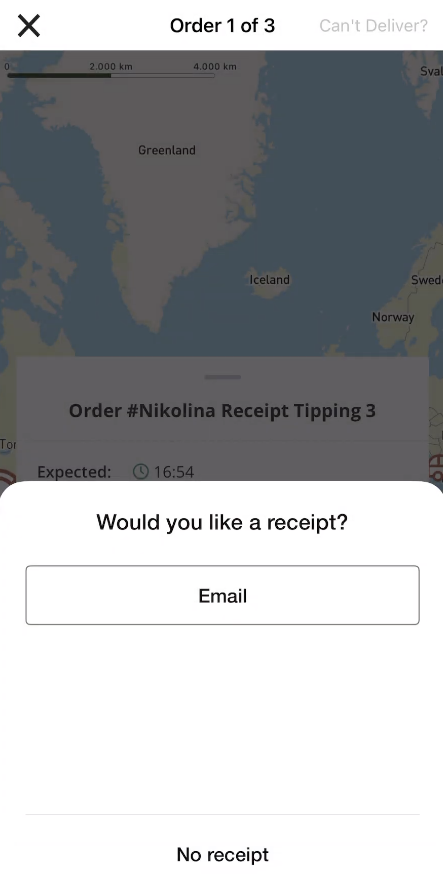
After the card is processed, offer to enter their email for a digital receipt (optional) or tap No receipt.
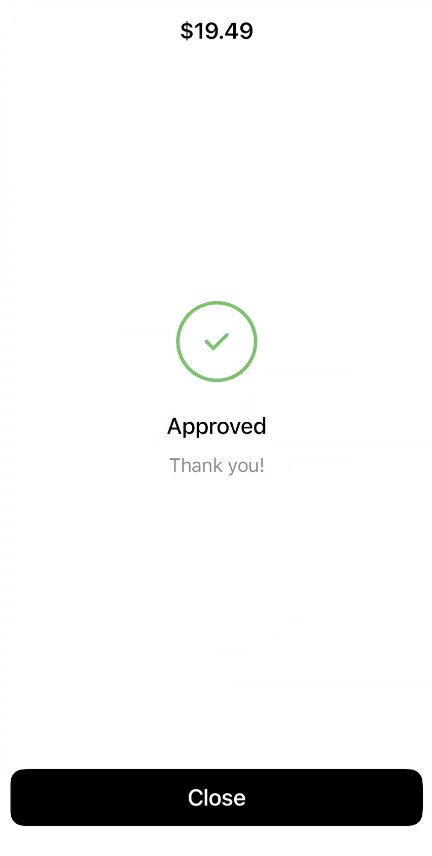
When the app shows Approved, tap Close.
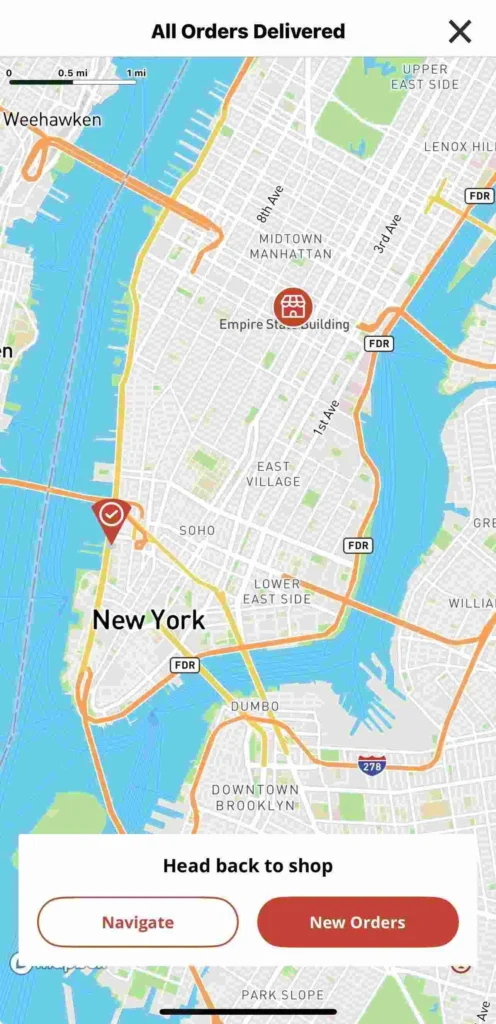
Use the GPS to head to the next delivery or return to the shop.
The order is now fully paid and recorded in your system.