
Menu
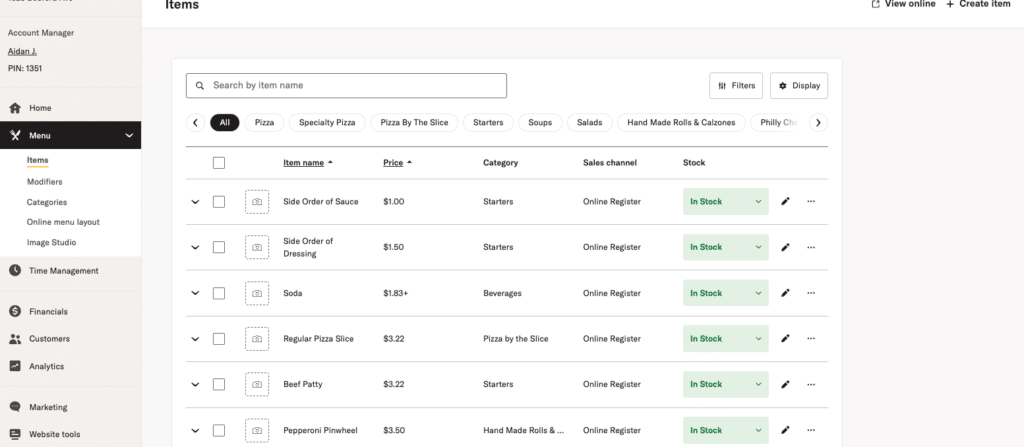
The Menu page allows you to manage your online and Register menus efficiently. Here’s what you can do:
- Create and Edit Items: Add new menu items or change existing ones. You can update details such as names, descriptions, prices, and any special modifiers or options associated with your items.
- Create and Edit Categories: Organize your menu by creating categories (e.g., Appetizers, Pizzas, and Desserts). You can also modify existing categories to organize your menu better.
- Change the Layout of Your Online Menu: Adjust the order and structure of your menu to make it user-friendly. Arrange categories and items to match your priorities or seasonal changes.
Items
Menu Item Matrix
The Menu Item Matrix provides a comprehensive overview of all menu items, allowing for efficient updates and edits.
The matrix breaks down the following details for each menu item:
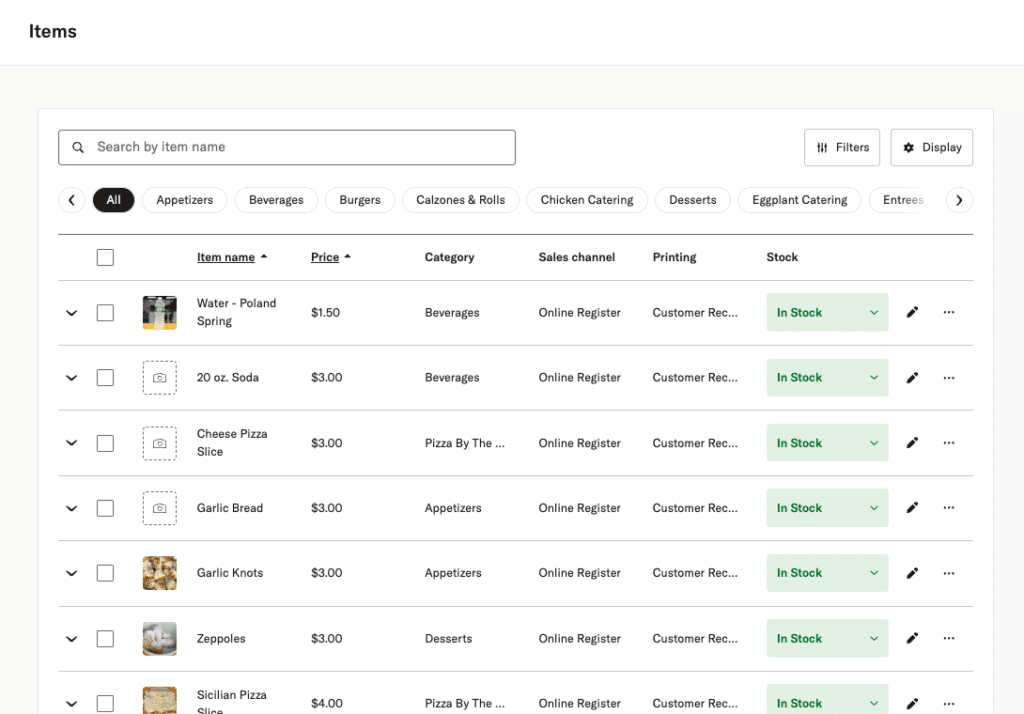
Item name: The name of the menu item as seen by customers. Click “Item name” to aphalbatesize your item list.
Price: The item’s current price. Click “Price” to sort by dollar amount.
Category: The category assigned to the item (e.g., Appetizers, Pizzas, Beverages).
Availability: Indicates whether the item is currently available for ordering.
Print Routing: This specifies the designated printer or station for preparing the item (e.g., kitchen, pizza, bar, etc.).
Stock dropdown: Indicates whether the item is in stock or temporarily unavailable. You can mark an item as out of stock for 12 hours, 24 hours, or indefinitely—ideal for seasonal items or those with an uncertain return date. If the item has multiple types, you can adjust the availability for specific types while keeping others available for ordering.

Search and Filter ToolsThe interface includes search and filtering options to locate items based on Name, Category, Availability, etc.
+ Create Item
The + Create Item button on the top left corner of the Menu page opens the New Item page. Here, you can add detailed information for a new menu item. Here’s what you can manage on the New Item page:
Item type
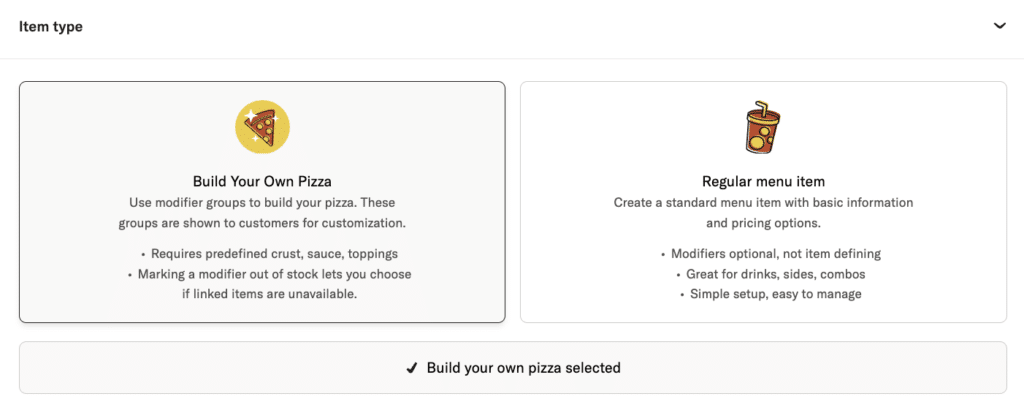
When creating an item, you must first choose an item type. This determines how the item is built and customized.
- Build your own pizza Uses modifier groups to let customers customize their pizza. Modifier groups selected here are shown to customers during checkout. This option is required for build-your-own pizzas and supports crust, sauce, toppings, and other pizza-specific choices.
- Regular menu item Creates a standard menu item with optional modifiers. This is best for drinks, sides, combos, and specialty items.
The item type can be changed later if needed.
Item details
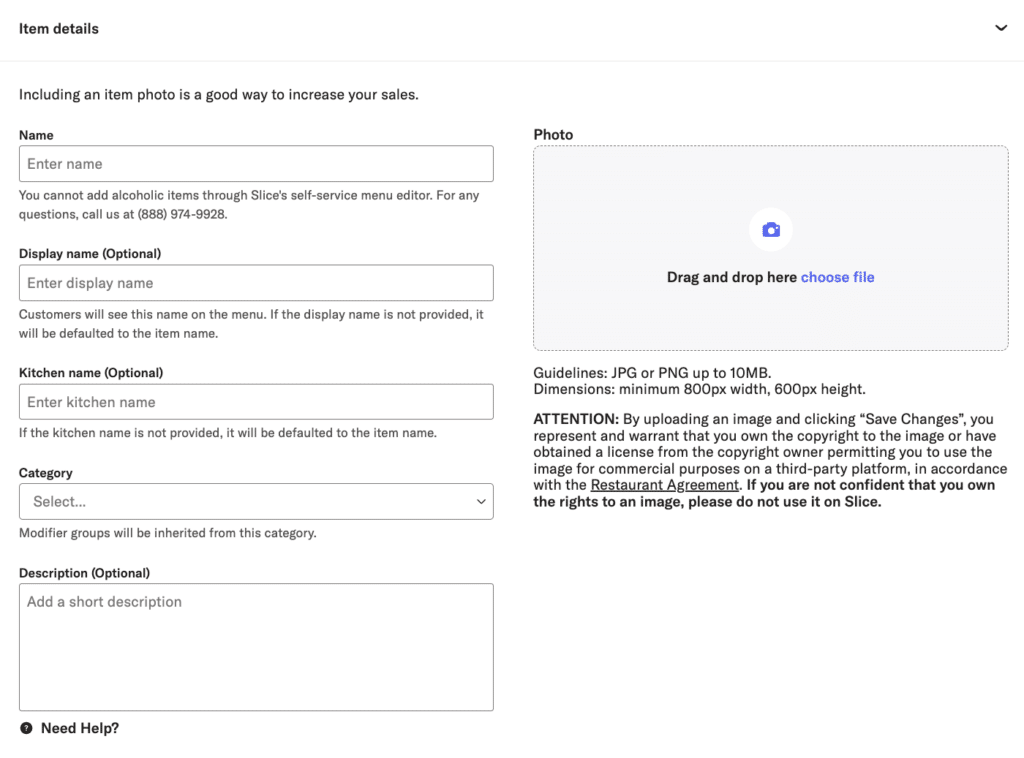
Use the Item details section to define how the item appears on your menu.
- Name The item name shown to customers.
- Display name (optional) A customer-facing name. If not set, the item name is used.
- Kitchen name (optional) A short name printed on kitchen tickets. If not set, the item name is used. This is helpful for abbreviations or alternate languages.
- Category Assigns the item to an existing category. Modifier groups are inherited from the category.
- Description (optional) A short description shown to customers.
- Photo (optional) Upload a JPG or PNG image up to ten MB. Minimum size is eight hundred by six hundred pixels. You must own the rights to the image.
Build your own pizza
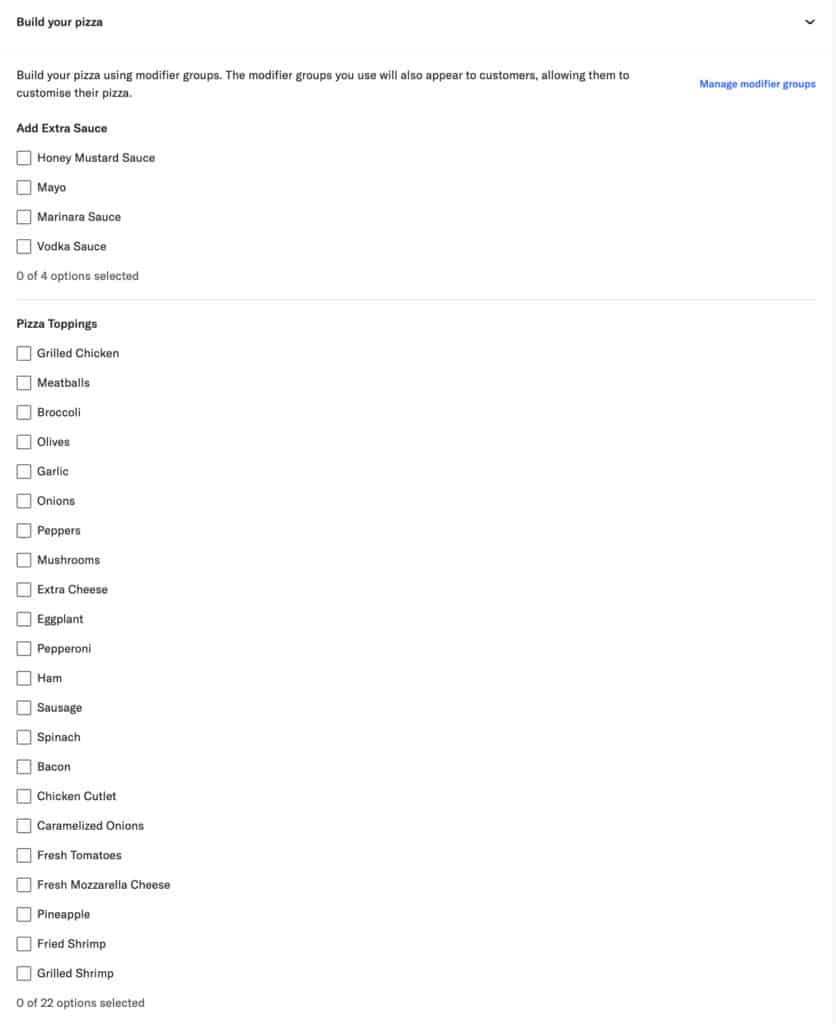
If Build your own pizza is selected, you must attach modifier groups before the item can be created.
- Modifier groups define available crusts, sauces, toppings, and add-ons.
- Selected modifier groups appear to customers during ordering.
- If a required modifier is out of stock, the item cannot be added to an order.
- Modifier groups are managed separately and selected during item setup.
Modifiers for regular menu items
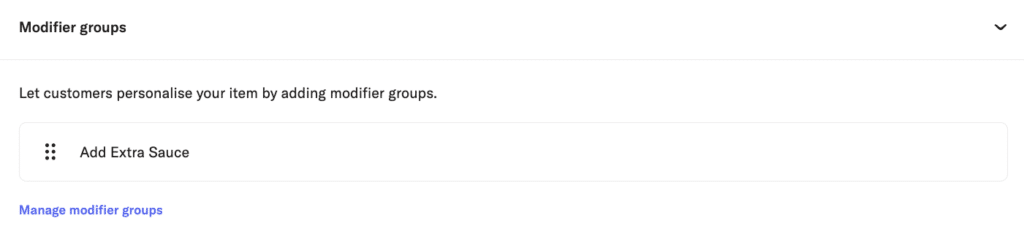
For Regular menu items, modifier groups are optional and used to let customers customize an item.
- Modifier groups added here appear as optional choices during checkout.
- Modifiers do not define the item. They add extras or substitutions only.
- You can add one or more modifier groups, such as extra sauces or add-ons.
- Modifier groups are managed separately. Use Manage modifier groups to create or update them.
- Modifiers added to a regular menu item apply to all sizes of that item.
If no modifier groups are added, the item is sold as-is with no customization options.
Sizes and pricing
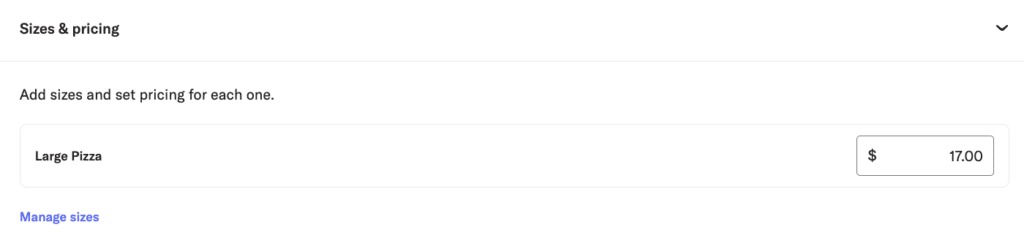
Use Sizes and pricing to set pricing for the item.
- At least one size and price is required.
- Sizes replace the old “type” structure.
- Each size has its own price.
- Sizes are managed centrally and selected per item.
Options
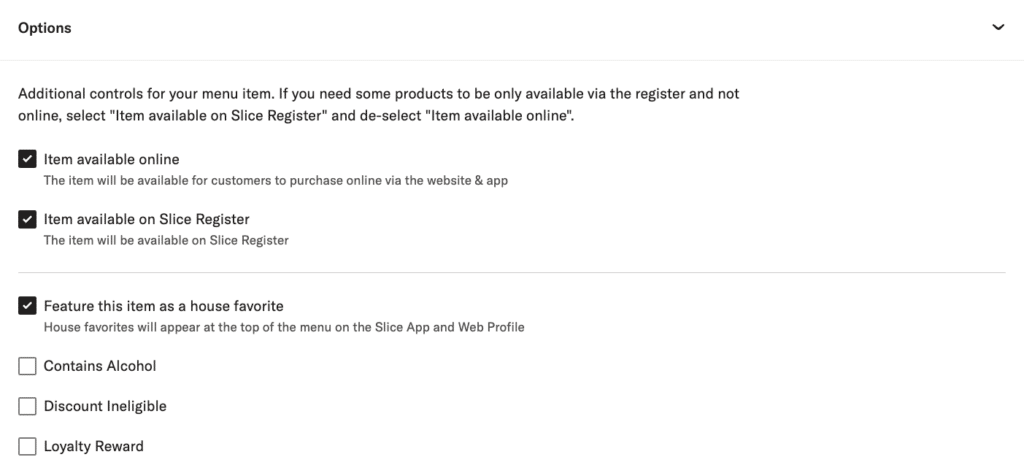
The Options section controls availability and behavior.
- Loyalty reward Makes the item eligible for loyalty rewards.
- Item available online Makes the item available for online ordering.
- Item available on Slice Register Makes the item available on the Slice Register.
- Feature this item as a house favorite Highlights the item at the top of the menu on the Slice app and web profile.
- Contains alcohol Marks the item as alcoholic.
- Discount ineligible Prevents the item from being discounted.
Register printing

Use Register printing to control where the item prints.
- Customer receipt
- Kitchen
You can select multiple printers or none, depending on how the item is handled in your shop.
For assistance or questions, contact Slice support at (888) 974-9928.
Edit an Existing Item
Use the pencil to the right of the item on the Menu Matrix to edit existing items. All of the fields will be the same as the New Item screen
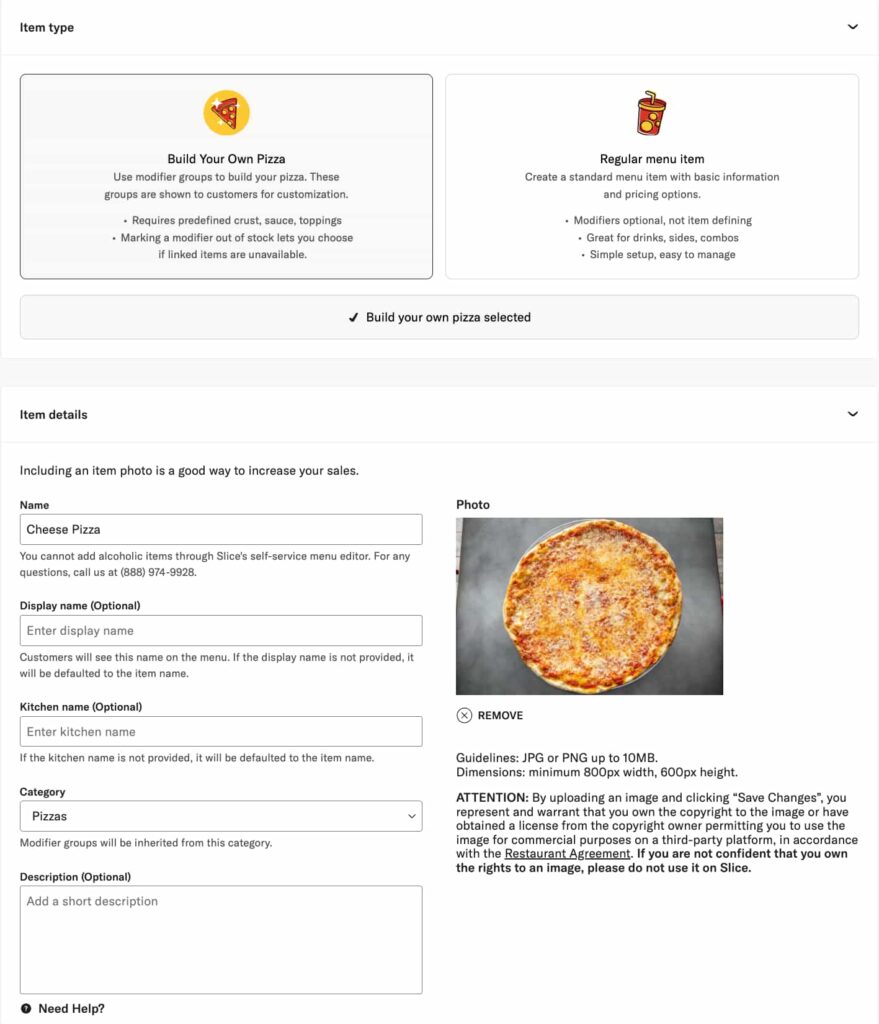
The Edit Item screen allows you to update items on your menu. In addition to the options offered for adding a new item, here’s what you can manage when editing an item:
- Stock dropdown: Indicates whether the item is in stock or temporarily unavailable. You can mark an item as out of stock for 12 hours, 24 hours, or indefinitely—ideal for seasonal items or those with an uncertain return date. If the item has multiple types, you can adjust the availability for specific types while keeping others available for ordering.
- Delete Item: Use the Delete Item button to permanently remove items from your menu. This is ideal for items that will not be returning.
Bulk item editing

Easily update multiple menu items at once using the bulk edit feature on the Menu page.
Select Items: Use the checkboxes on the left to select the items you want to edit.
Choose an Action (Options appear at the bottom of the screen):

Mark Items Out of Stock: Set selected items as unavailable for:
- Custom: Choose when this item will come back in stock.
- Indefinitely
- For 12 hours
- Mark Items In Stock: Restore availability for all selected items.

Change Price: Increase or decrease prices for selected items by flat dollar amounts or a percentage. Click Save to apply your updates.

Assign Printer: Quickly update printer settings for selected menu items. Adjust whole categories or individual items as needed. Select the items you want to update, click Assign Printer, and choose the correct printers. Click Save to apply your updates. Selecting no printers is an easy way to save paper for items like bottled soda or fountain drinks that don’t need a printed kitchen ticket.
View Online
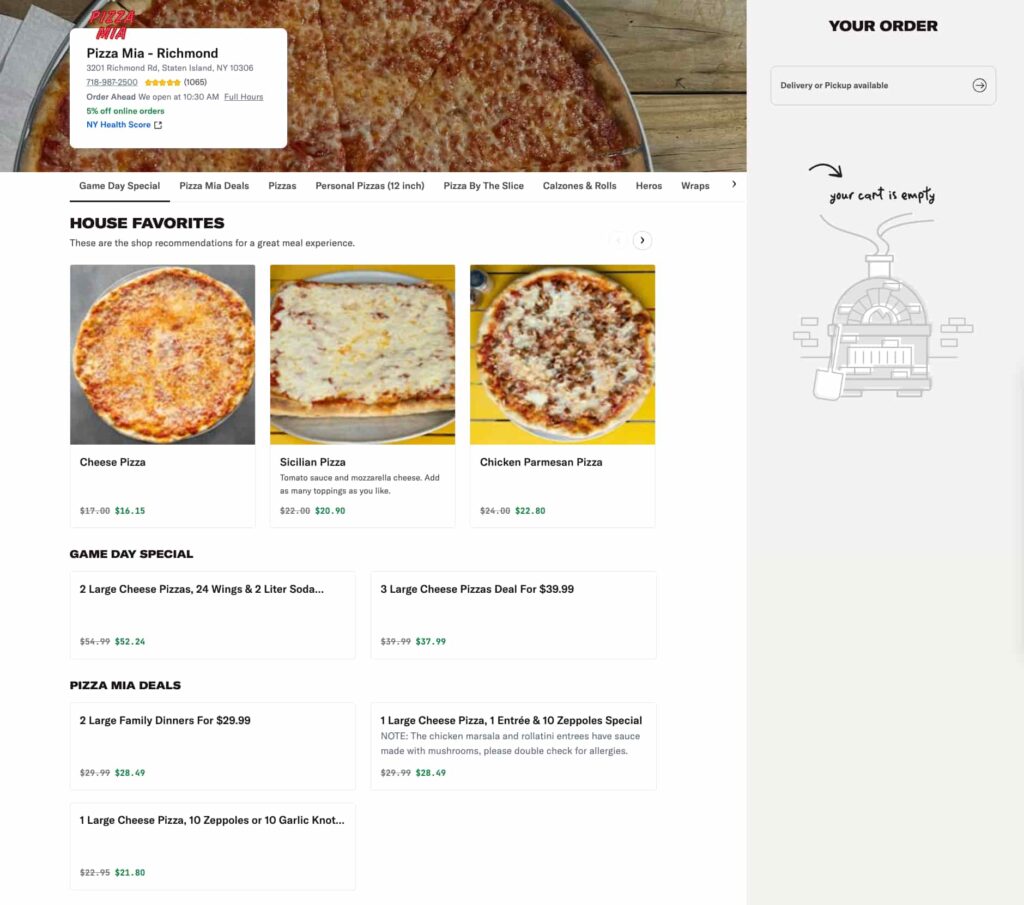
Click View Online to see how the item appears to customers on your Slice online menu, ensuring everything is accurate and appealing.
Modifiers
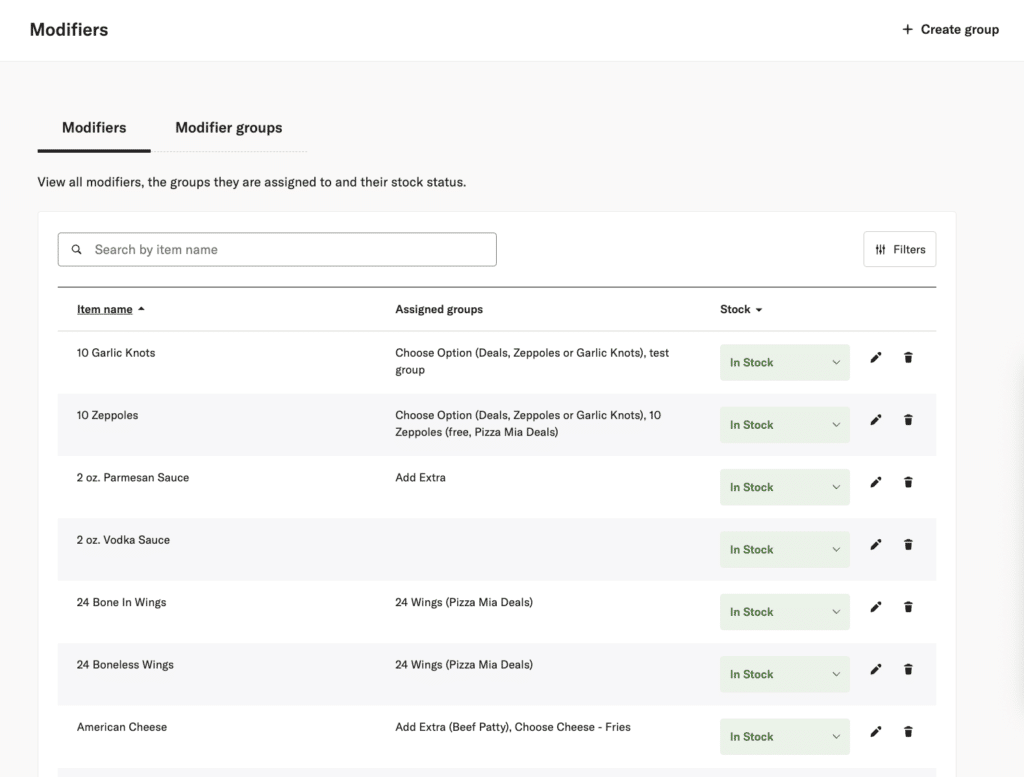
Modifiers let you offer add-ons, extras, or choices for menu items. Modifiers are created once and reused across items using modifier groups.
There are two parts to understand:
- Modifiers are the individual add-ons, like Bacon or Extra Cheese.
- Modifier groups control how those modifiers appear, how they are priced, and how customers select them.
Modifiers
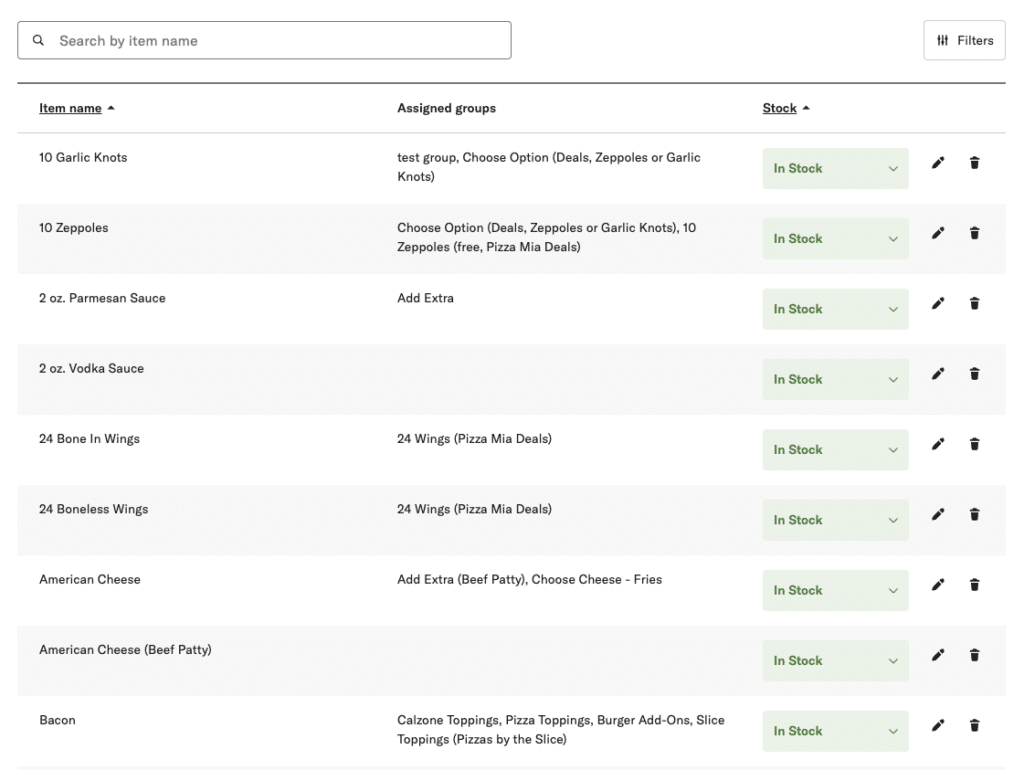
Modifiers are individual items that customers can add to an order.
- Each modifier has an Item name and an optional Display name.
- If no display name is set, the name is shown to customers.
- A modifier can be used in multiple modifier groups.
Stock status
Modifier stock is managed globally.
- If a modifier is marked Out of stock, it is unavailable everywhere it is used.
- Out-of-stock modifiers are shown as unavailable and cannot be added to the cart.
- Stock status is managed from the Modifiers page only.
Modifier groups
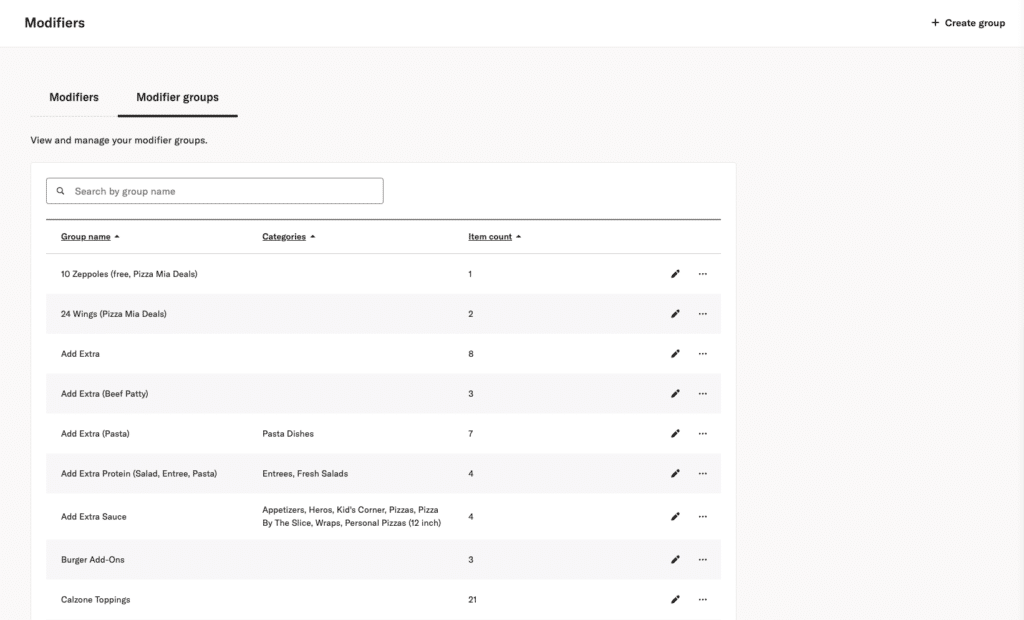
Modifier groups control how modifiers are presented to customers.
A modifier group defines:
- Which modifiers are available
- How modifiers are priced
- Whether selections are required
- How many modifiers a customer can choose
Modifier groups can be added directly to items.
Creating a modifier group
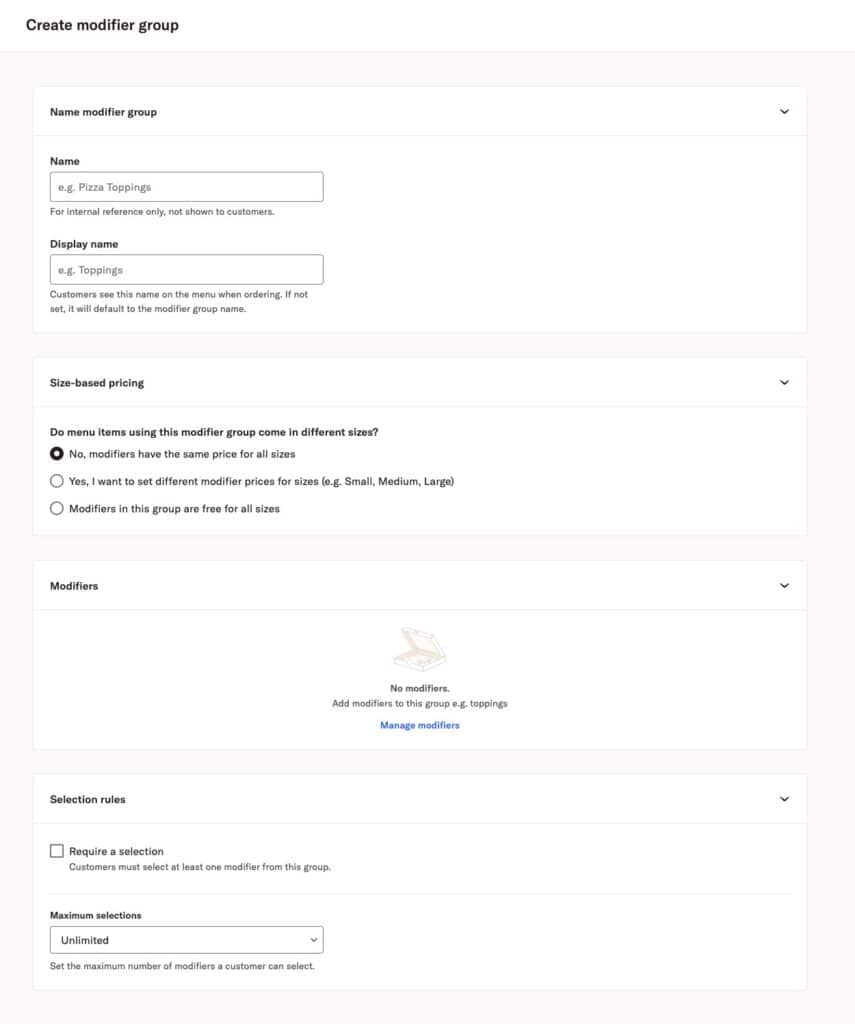
Modifier groups control how add-ons and options are shown to customers. Use modifier groups to organize modifiers, set pricing rules, and define how customers make selections.
To create a new modifier group, go to Modifiers, then select + Create group.
Name modifier group
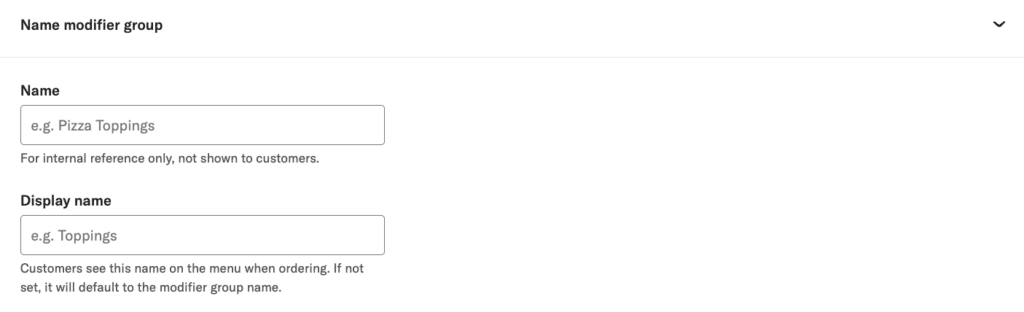
- Name Internal only. This name is not shown to customers and is used to help you identify the group in your menu setup.
- Display name Shown to customers when ordering. If you do not enter a display name, the group name is shown instead.
Size-based pricing
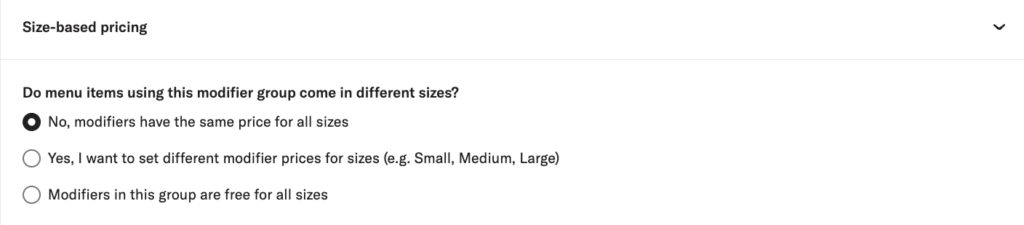
Choose how modifiers in this group are priced across sizes.
- Modifiers have the same price for all sizes Use one price regardless of item size.
- Set different modifier prices for sizes Set different prices for each size, such as Small, Medium, and Large. Prices must be entered for every size.
- Modifiers are free for all sizes Modifiers in this group do not add an extra charge.
Only one pricing option can be selected.
Modifiers
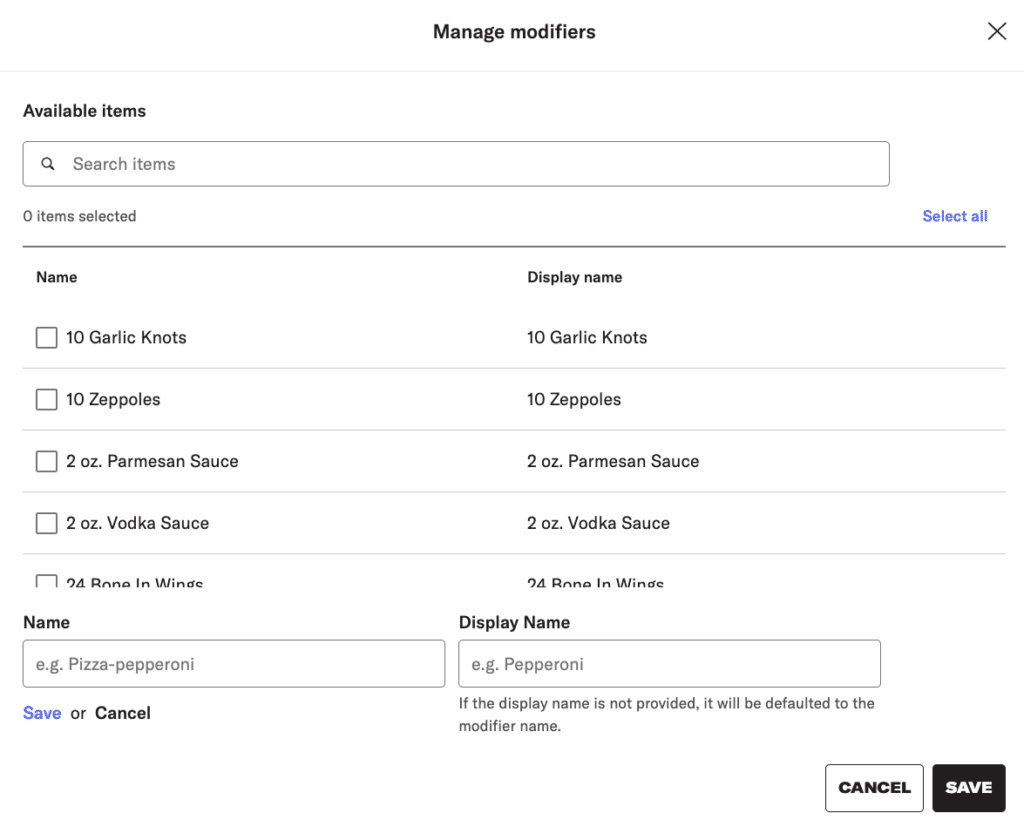
Use this section to add modifiers to the group.
- Select one or more modifiers from the Available items list.
- Use the search bar to find modifiers by name.
- Select Select all to add every available modifier at once.
- To create a new modifier, enter a Name and Display name at the bottom of the list, then select Save.
- If no display name is entered, it defaults to the modifier name.
Modifiers can be reused across multiple modifier groups.
Modifier stock status is managed separately and applies everywhere the modifier is used.
Selection rules
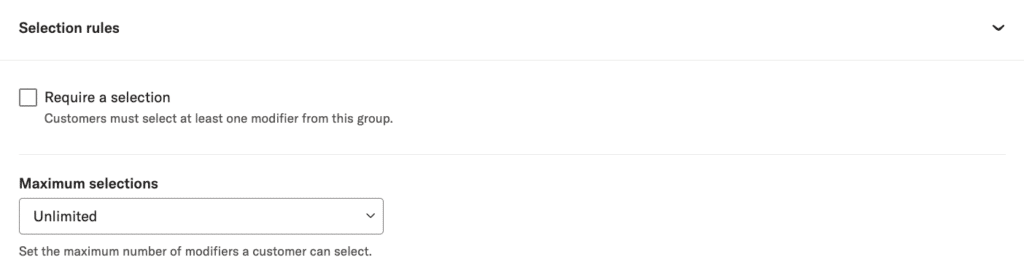
Control how customers interact with the modifier group.
- Require a selection Customers must choose at least one modifier before adding the item to the cart.
- Maximum selections Set the maximum number of modifiers a customer can select from this group. This limit applies per item and does not vary by size.
Saving the group

When finished, select Create to save the modifier group.
- Modifier groups can be edited at any time.
- Deleting a modifier group removes it from all items using it.
Edit modifier groups
Categories
The Categories Page allows you to manage your menu categories. Here’s what you can do:

Create New Categories: Add new categories to organize your menu items effectively, such as “Lunch Specials” or “Seasonal Favorites.”

Set Availability: Choose whether a category is available every day or only on specific days of the week. This flexibility allows you to tailor your menu to align with daily specials or limited-time offerings.

Edit Existing Categories: To edit an existing category, click the pencil icon next to it. You can update the category name, description, and Availability.
Online Menu Layout
The Online Menu Layout page lets you reorder and restructure your menu to improve usability. You can arrange categories and items to align with your business priorities or accommodate seasonal changes. This ensures your online menu is optimized for customer browsing and easy use. Here’s what you can do:

Reorganize Categories: Click and drag the six dots to the left to arrange menu categories to highlight your priorities or seasonal offerings.
Reorder Items: Click the pencil to the right of the category to adjust the placement of individual items within categories to improve customer browsing.
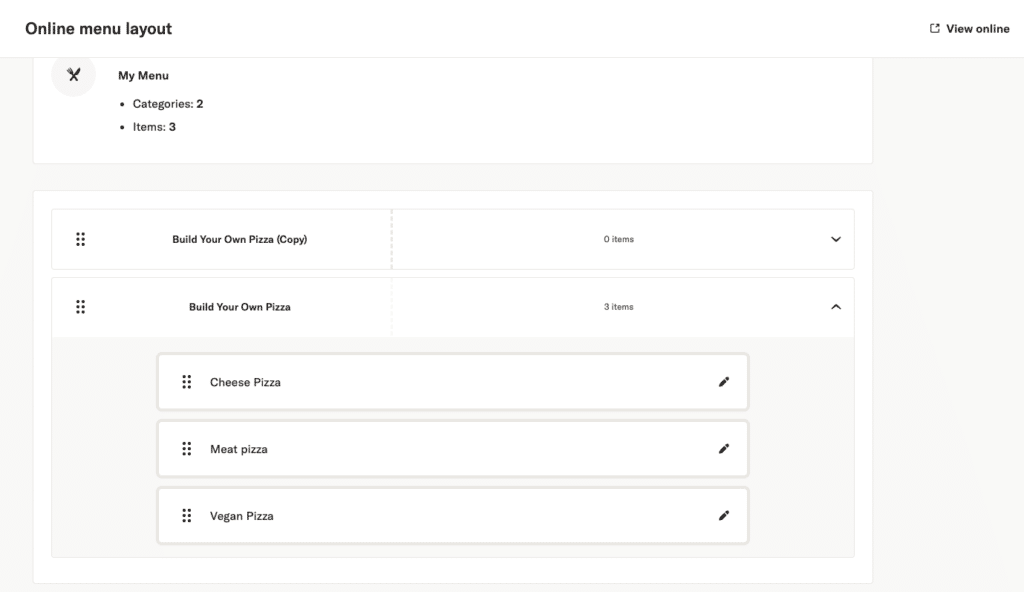
Edit items
- Expand the category you want to edit with the arrow on the right.
- Find the item you want to update.
- Click the pencil icon to be redirected to the Edit item page.
Best Sellers
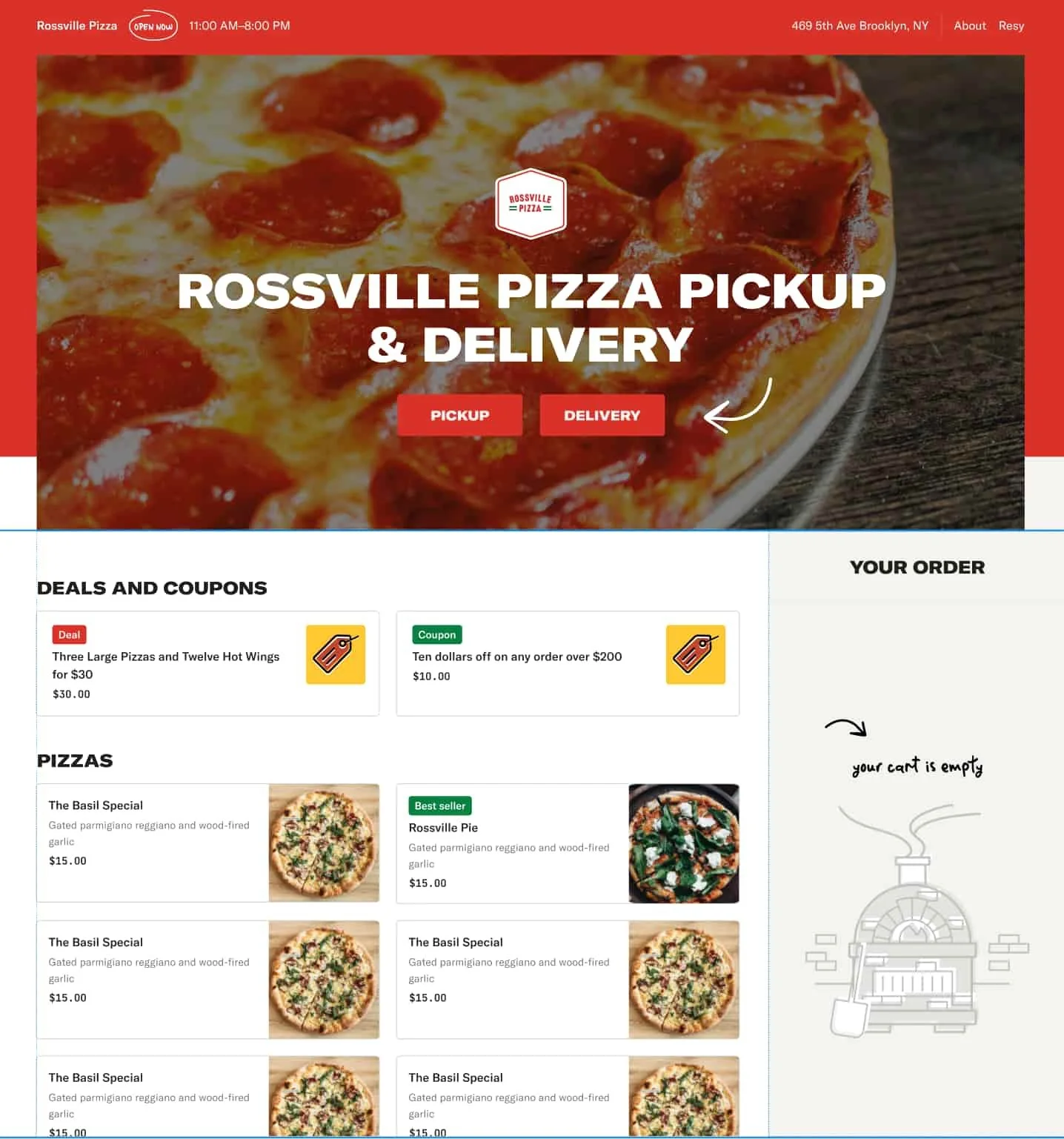
The Best Sellers badge automatically highlights the top five most ordered items on your menu. This helps customers quickly see what is popular, especially when ordering for the first time.
How it works:
- Items are selected based on the last 30 days of Slice order data
- A Best Sellers badge appears next to each qualifying item on your menu in the app and on the web
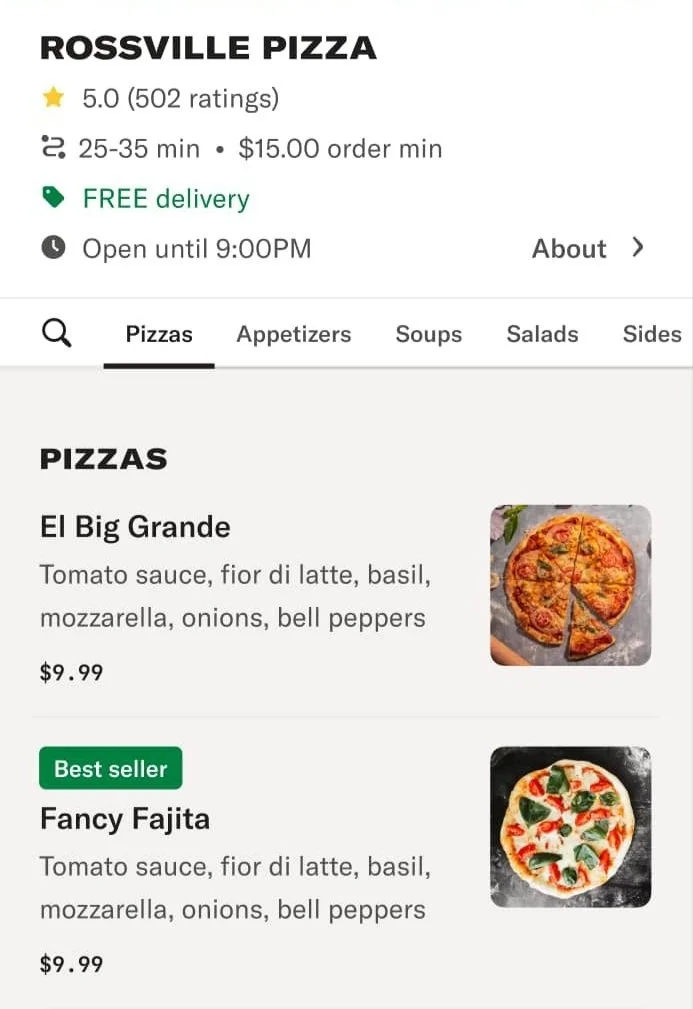
- Only items priced at $5 or more are included by default
- These are the same menu items in the categories you decide, just with an added badge
This feature is turned on for all shops by default. If you want to turn it off or adjust the $5 minimum price requirement, please contact your Account Manager or call (855) 237-4992.