
Slice Phone

Slice Phone helps your shop handle more calls without missing a beat. When you enable it, every incoming order is answered by a dedicated team trained to sound just like your staff, and placed directly into your Slice Register. Agents use your Register menu, quote your ETAs, and follow your upsell preferences so the process is fully integrated with your system.
If your shop needs it, we also offer Spanish Phone Ordering as an option. With this option, bilingual agents can greet and take orders in Spanish or English, while still placing them in English through your Slice platform.
Phone agents only take new orders; they do not handle complaints, refunds, or callbacks. If a customer calls with an issue, the agent will contact you so your shop can resolve it. If an error occurs on an order the agent just placed, they will reach out directly, either by calling your shop or sending a WhatsApp(iOS/Android) message.
Your shop’s main line forwards to Slice, and a secondary line stays open so our team can reach you when needed. You’ll work with our onboarding team to set everything up and walk through each step to make sure you’re ready to go live.
The Slice Phone setup follows three phases to make sure your shop is fully supported and comfortable with the service:
Onboarding
This is the setup and configuration stage. Our team works with you to forward your shop’s phone line, confirm your menu, and set up your communication channel in WhatsApp. We also ensure that your preferences for upselling, prep times, and hours are documented, so our phone team can answer calls just as you would.
Hypercare
Once onboarding is complete, we go live with limited coverage. During this period, the Slice Phone team typically handles about 50 to 70 percent of your incoming calls while we monitor performance and make adjustments. The goal is to ensure that orders flow smoothly and the phone team quotes the correct ETAs, follows your menu updates, and matches your shop’s style of service.
Ongoing phone management
After hypercare, we shift to steady coverage. The Slice Phone team will now answer the majority of your incoming calls. You will continue to use WhatsApp to keep us updated on any changes such as hours, prep times, or menu edits, so the phone team can always represent your shop accurately. Slice Support remains available if any issues arise.
Onboarding
To start using Slice Phone, you’ll complete a short onboarding process with the Slice team and your phone provider. This setup allows us to answer incoming orders while keeping your shop accessible when needed.
Before your onboarding call, contact your phone provider and confirm these two things:
- Unconditional call forwarding is enabled on your shop’s main line (calls always forward, no matter what)
- Concurrent call forwarding is enabled (multiple calls can forward at the same time)
If you’re not sure how to ask, you can say:
“I need to confirm I can forward my main line to a new number so that multiple calls can be handled at the same time. I also need to confirm that my secondary line can receive multiple incoming calls at once.”
Once your provider confirms both settings, you’re ready for onboarding.
During the onboarding call, you will:
- Forward your shop’s main number to the Slice-provided number. Your onboarding representative will provide you with the number and assist you in testing it. If supported by your phone system, you can dial *72 followed by the Slice number to forward your line.
- Provide your secondary shop number so our team can reach you directly. This number must:
- Be different from your main line
- Be able to accept multiple calls at once
- Be staffed during business hours
- Have no call forwarding active (dial *73 to deactivate if needed)
If you need help during onboarding, contact Slice Support at (888) 347-7391.
Menu and Configuration Call
Before you go live, we’ll schedule a one-hour menu and configuration call. This is not a training session. It’s a working session where we’ll build and adjust your setup together, while learning how your shop operates on a day to day basis. Everything we configure on this call helps us take phone orders just like your staff would.
During this call, we’ll work through two main areas:
Menu
- Your full Register menu, including item names, modifiers, combos, and prices
- Upsells you want us to offer and when
- Hidden items that are not on the public menu but still available to regulars
- Exceptions, like catering orders that should go directly to the shop
- Special handling for things like large orders or Spanish-speaking customers
Configuration
- Delivery zones and fees
- Your preferred greeting when we answer the phone
- How you want us to quote ETAs during busy hours
- How to respond to a non-order question, like store hours or order status
- Rules for accepting coupons and how to verify they are valid
- Any VIPs who get special treatment, like someone who orders “the Johnny,” a special pie that your regulars know
- WhatsApp setup. You’ll need to download WhatsApp on your shop phone. This is how you’ll communicate with your Slice Phone team for updates, questions, and urgent changes
Once the call is complete, we’ll go live with basic coverage. You can expect us to handle about 50 to 70 percent of your incoming calls during the hypercare period.
After that, you must keep your Phone team updated just like you would with any other employee. If you change your hours, update your menu, adjust pricing, or modify prep times, please notify us promptly. Send all updates through your WhatsApp group with the Slice Phone team. For any urgent or unclear matters, please contact Slice Support at (888) 347-7391.
Using Slice Phone
Once you’re live, here’s how Slice Phone works:
- All calls to your main line forward to your Phone team
- If all agents are busy or it’s after hours, the call goes to your secondary shop line
- Coverage varies by site, but most calls are handled between 11:00 AM Eastern (8:00 AM Pacific) to 2:00 AM Eastern (11:00 PM Pacific).
- You keep your existing phone number—no changes needed
- The phone indicator on your Register screen shows who is handling calls.
- Green means the Slice Phone team is taking orders.
- Red means your shop is handling calls.
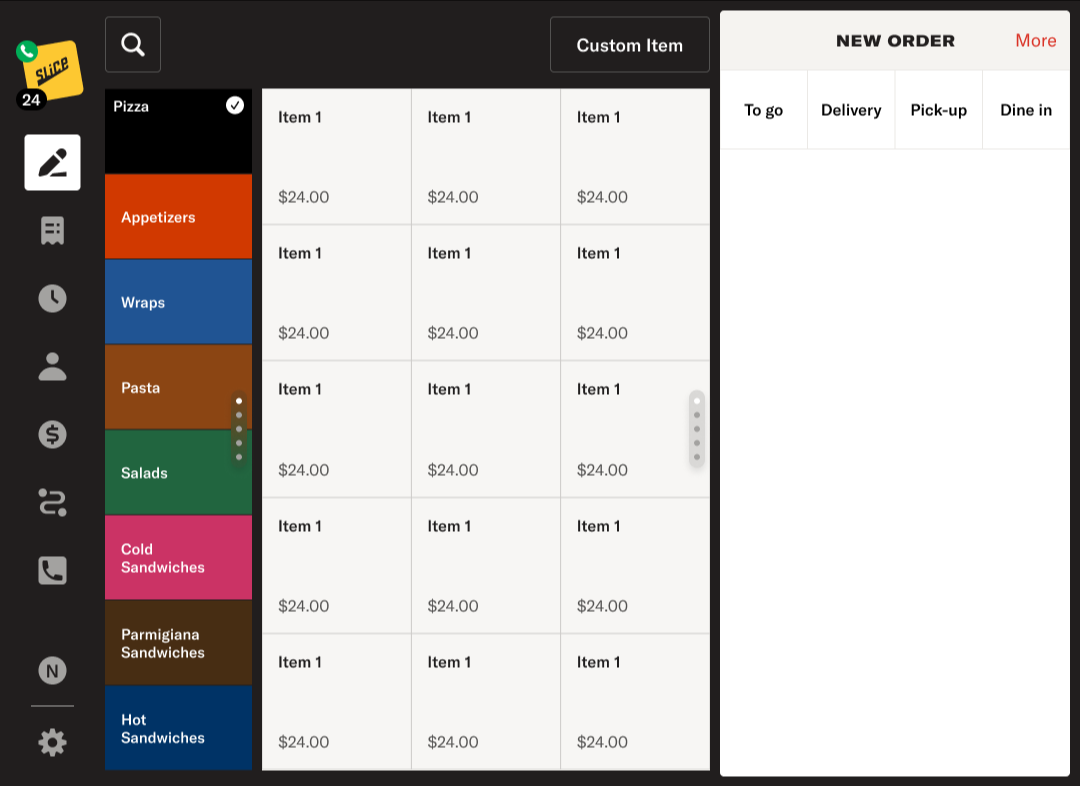
This does not confirm whether call forwarding is active; if call forwarding is disabled, the indicator may still show green even though Slice is not receiving orders.
Slice Phone toggle on the Register
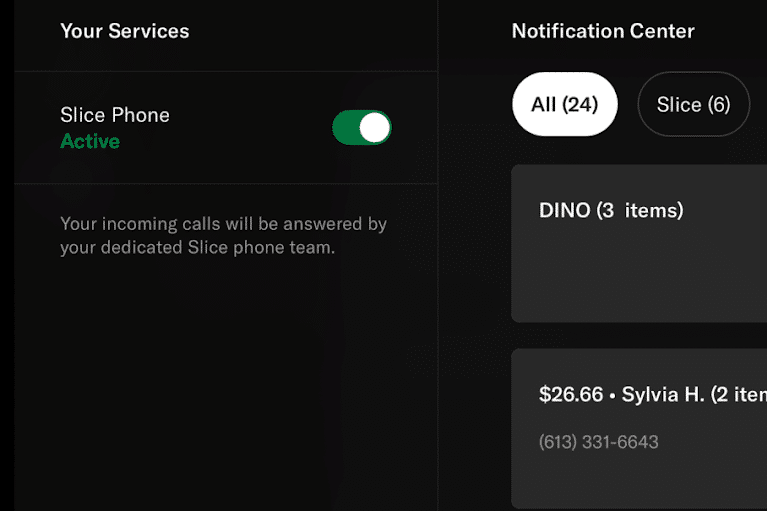
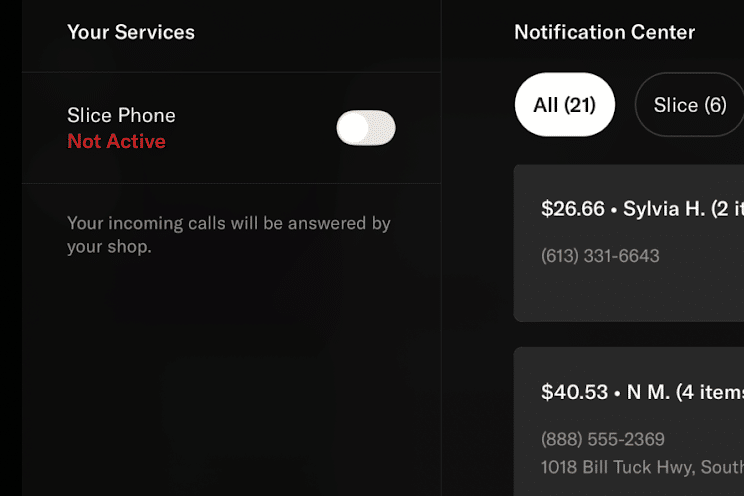
The Slice Phone toggle is the only way to turn Slice Phone on or off for your shop. You manage this setting directly from the Register, and changes take effect immediately.
To manage Slice Phones:
- Tap the Slice logo in the top left corner of the Register to open your Notification Center.
- Under the Your Services panel, find Slice Phone.
- Use the toggle to turn Slice Phones on or off.
How the toggle works:
- When the toggle is on, incoming calls are handled by the Slice Phone team.
- When the toggle is off, all new incoming calls go directly to your shop.
The phone indicator on the Register reflects the toggle state:
- Green means Slice Phone is on and the Slice Phone team is handling calls.
- Red means Slice Phone is off and your shop is handling calls.
If Slice Phone is turned on but a customer calls outside of Slice Phone service hours, the call will still go directly to your shop. The toggle remains on, but the Slice Phone service is unavailable during that time.
The change takes effect immediately.
When a customer calls:
- The Phone team answers with your custom greeting
- They use your Register menu and follow your upsell preferences
- They quote your ETA and place the order through a special internal system
The order goes straight into your Register with an ID starting in Phone
You’ll see the order appear with an ID starting with Phone. These act like online orders:
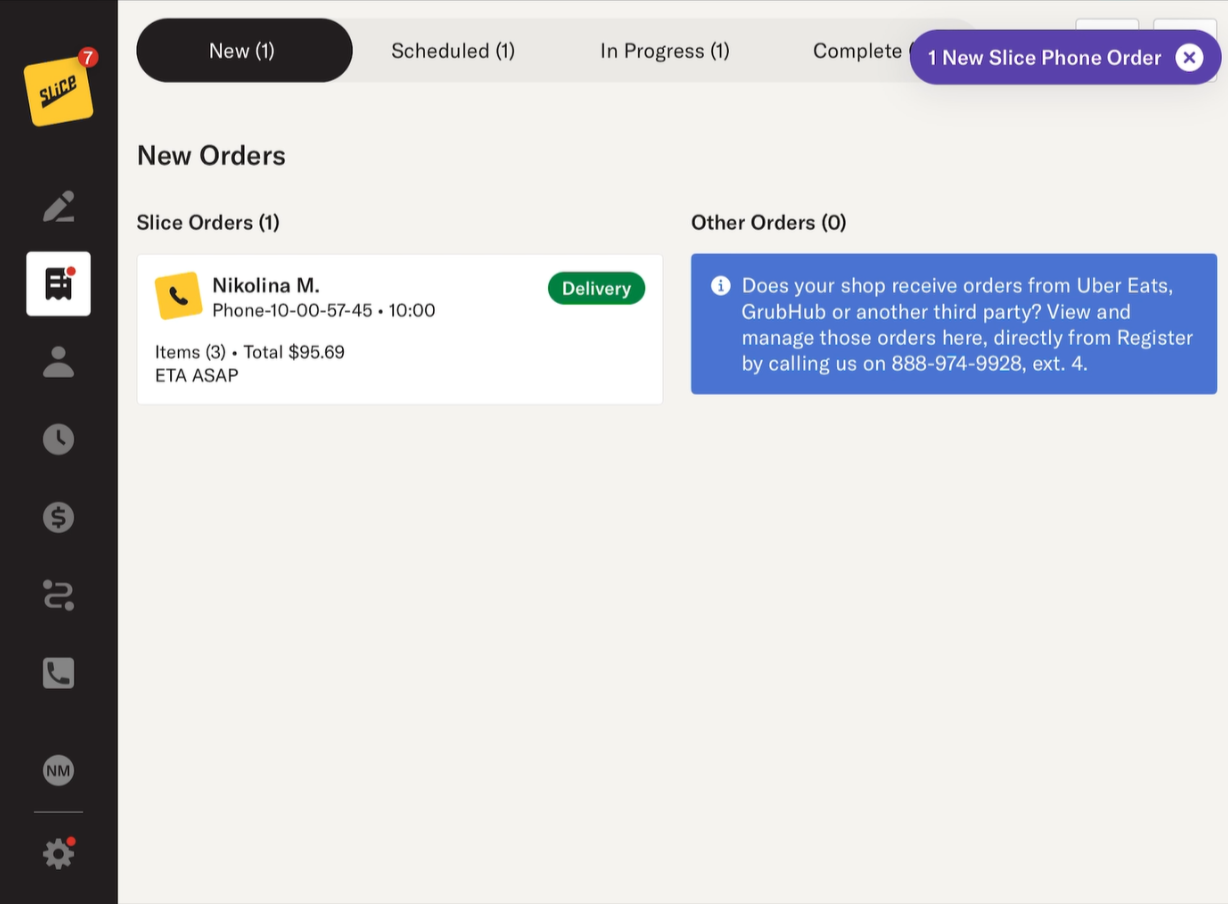
A phone icon instead of the Slice logo
- A purple banner in the top-right corner of your Register
- An Acknowledge button—tap this to confirm you’ve received the order
After acknowledgment:
- The order moves to In Progress
- If auto-printing is on, the kitchen receipt prints right away
- If paid by card, you just complete the order when it’s ready
- If unpaid, collect payment at pickup or upon delivery
- You can edit cash orders and add tips to card orders just like any other Register order
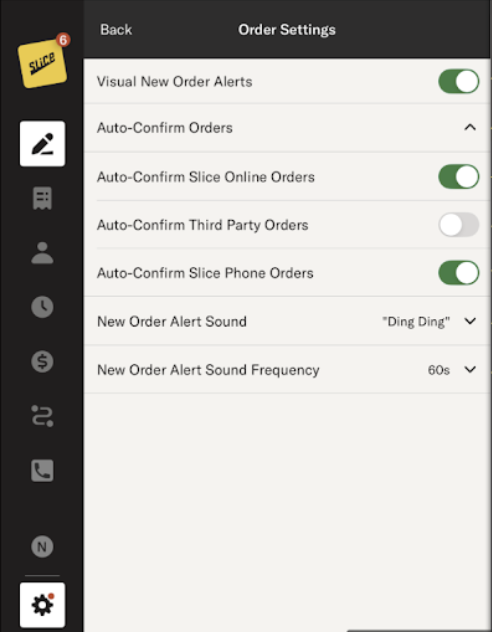
To simplify things, you can turn on Auto-Confirm Slice Phone Orders under Order Settings > Auto-Confirm Orders.
If our team needs assistance during a call, we’ll reach out using your secondary contact number or the WhatsApp group. We’ll also automatically forward:
- Calls from Slice
- Calls from customers who’ve already placed an order
All calls are recorded for quality control. If there’s ever an error, please let us know. We’ll investigate and make it right.
Need help?
Contact Slice Support at (888) 347-7391.
Text message order details and payment
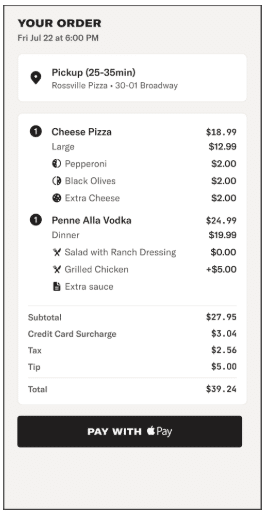
When a customer places a phone order with your shop through the Slice Phone team, they receive a text message with their order details. This text helps customers review their order and, when applicable, pay for it online.
How it works
A customer calls your shop and places an order with the Slice Phone team.

If the customer calls from a cell phone, they receive a text message with:
- Their order details
- An ETA
- A link to view the order summary
When the customer taps the link, they see their full order details in a secure online view.
Paying through the text message
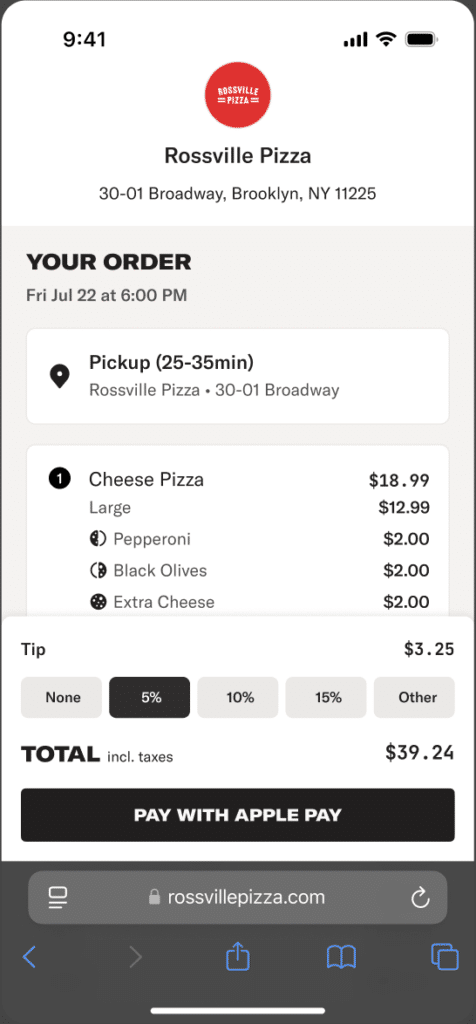
If the phone order has not been paid yet, the order summary includes an option to pay online.
- Paying through the text is optional.
- Customers can still choose to pay when they receive their order.
If the order was already paid during the phone call, the customer will see a confirmation that payment is complete instead of a payment option.
Some orders require payment before the order can be placed, such as delivery orders fulfilled by third-party drivers. In these cases, payment is collected during the phone call, and the text message is sent as a receipt only.
What happens after
- The order status clearly shows whether the order is paid or unpaid.
- If the customer notices an issue or needs to make a change, they must call back. Orders cannot be edited through the text.
- The text link remains active until the order is picked up or delivered. After that, the link expires and directs the customer back to your website.

Shop actions and limits
- This feature is already active for all Slice Phone shops. No setup is required.
- It only applies to phone orders taken by the Slice Phone team.
- It does not apply to orders entered directly on the Slice Register.
- Paying through text is a convenience for customers, not a requirement.